


Switch to dark mode
Display mode lets you give the app a light or a dark look, or let it follow the setting of your phone.
Step by step
-
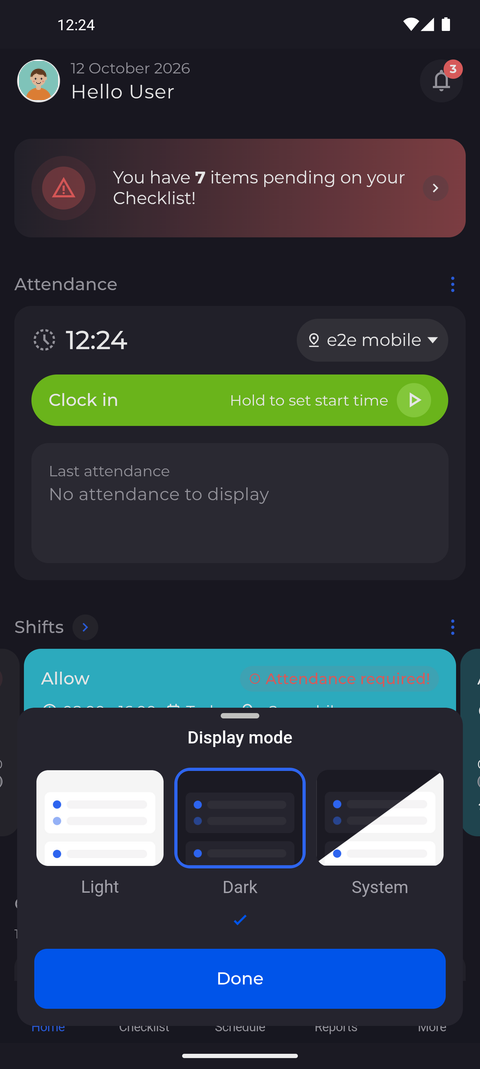
Step 1: In the More menu, Display mode offers Light, Dark or the phone's own setting
Tap More at the bottom right, then Display mode. In the picker that slides up, tap the Dark preview picture - it gets a blue frame and a check mark appears under it. Then tap Done.
Tip: The app changes its look as soon as you tap Light, Dark or System; Done only closes the picker.
Tip: System follows the dark-mode setting of your phone and switches with it, also while the app is open.
Tip: You also find Display mode on the Settings page, in the Application section.
-
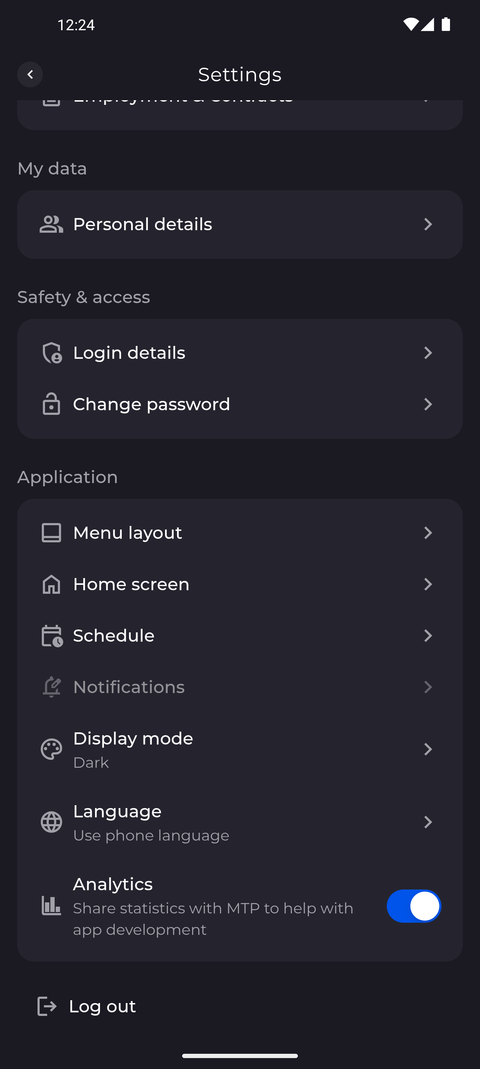
Step 2: The app stays dark until you change it back
The app stays dark, also after you close and reopen it. To check, tap More, then Settings, and scroll to the Application section: the Display mode row reads Dark.
Tip: With System chosen, the Display mode row shows Light or Dark - the look your phone uses right now - not System.
What happens next
The app uses the look you picked until you change it again. To go back, open Display mode and tap Light or System.
Good to know
- Until you choose a display mode, the app uses System.
- Signing out does not reset the display mode - the next person who signs in on this phone sees the same look.