


Choose the tabs in the bottom bar
Menu layout lets you decide which pages sit in the bottom bar and which ones you open from More.
Step by step
-
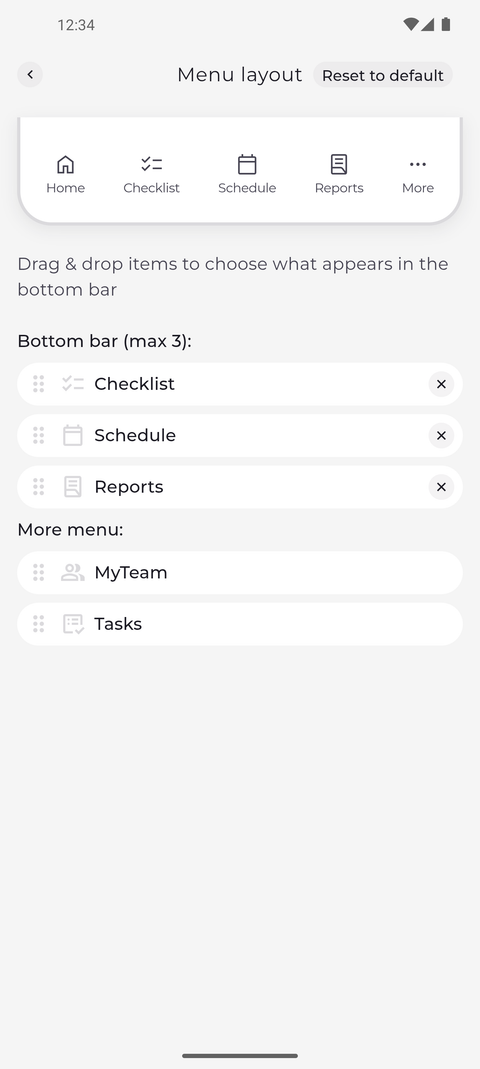
Step 1: Menu layout shows the bottom bar and what sits in the More menu
Tap More in the bottom bar, then Settings, and then Menu layout. At the top you see a preview of your bottom bar. Below it, Bottom bar (max 3): lists the tabs in the bar and More menu: the pages you open from More.
Tip: Home is always the first tab and More always the last. They are not in the list and cannot be moved.
Tip: Drag a row by its handle to change the order of the bottom bar, or drag it across More menu: to move a page between the bottom bar and the More menu.
-
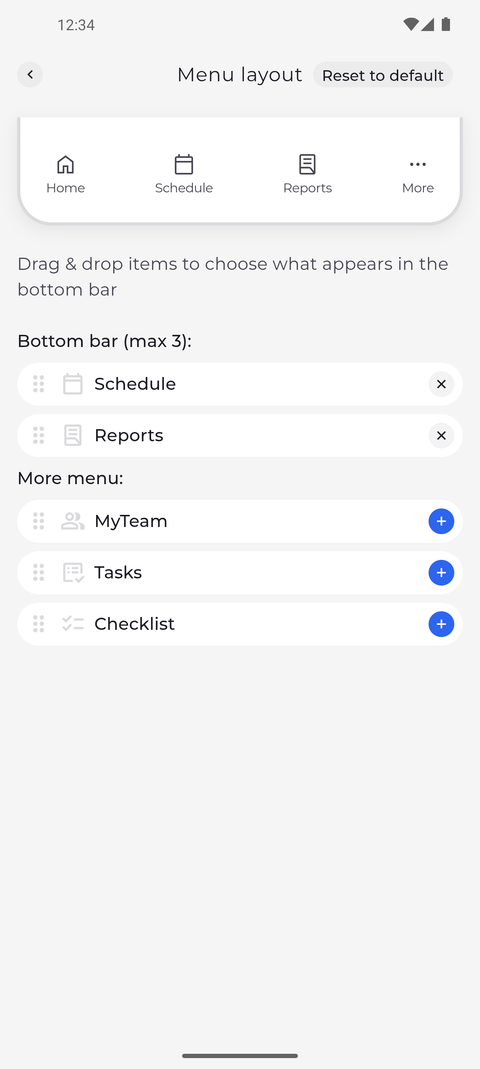
Step 2: Tap the cross to move a tab to the More menu, or the plus to bring one back
Tap the cross next to a tab. It moves to More menu: and disappears from the preview, and because the bottom bar has room again, every page in the More menu gets a blue plus. Tap a plus to bring that page into the bottom bar.
Tip: At least one tab has to stay in the bottom bar, so the last one left there has no cross.
What happens next
The bottom bar shows only the tabs you chose, and the pages you moved out still open from More. Your choice stays on this phone, also after you restart the app, until you change it or tap Reset to default.
Good to know
- Reset to default puts Checklist, Schedule and Reports back in the bottom bar and moves every other page to the More menu.
- The menu layout is saved on this phone, not in your account. It stays when you log out, applies to anyone who signs in on this phone, and does not carry over to another phone.
Questions
Why is there no plus next to the pages in the More menu?
The bottom bar already holds three tabs, the most it can take. Tap the cross next to one of them first, and the plus buttons come back.