


Set the default hours for new shifts
Default shift time sets the hours a new shift starts with, so you do not have to set them every time.
Step by step
-
Step 1: New shifts now start with the hours you set
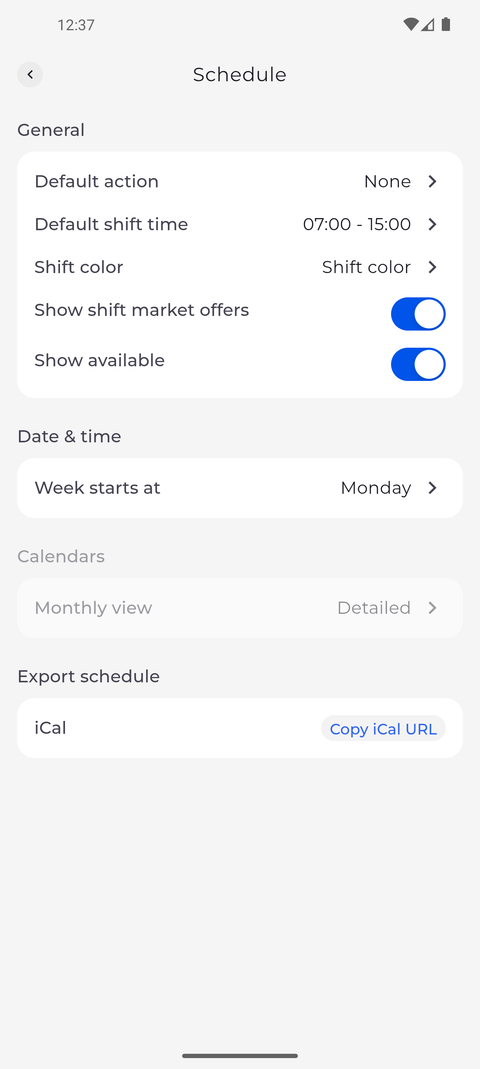
Tap your profile picture at the top left of Home to open Settings, then tap Schedule. Under General, the Default shift time row shows the start and end hours that new shifts begin with; after a change, it shows your new hours.
Tip: Tap Default shift time, set the start and the end under From - to and tap Save.
Tip: Swipe the sheet down instead of tapping Save to keep the hours you had.
Tip: Until you change it, the default shift time is 08:00 - 16:00.
What happens next
New shifts you add on this phone start with the hours you set.
Good to know
- A new registration request starts with these hours too.
- A new attendance you add in the app starts with these hours too, unless the app already knows its times - for example when you add it for a shift.
- The setting only decides what an editor starts with. You can still change the hours of every entry before you save it.