


Change your phone number and address
Add or change your phone numbers and your address in Personal details.
Before you start
You need:
- Your company lets you change your phone numbers and address in the app - each one separately; a line you may not change is greyed out
New to the app? Start with Sign in to the MyTimePlan app.
Step by step
-
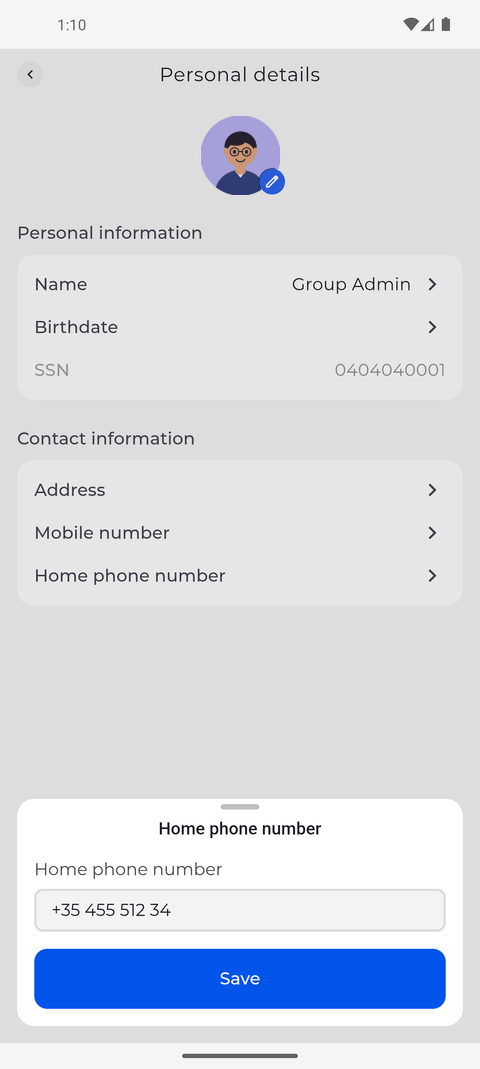
Step 1: Type the digits - the app adds the plus and the spaces for you
Tap your profile picture at the top left of Home to open Settings, then tap Personal details. Under Contact information, tap Home phone number, type the number in the sheet that opens and tap Save.
Tip: Type the number with its country code, digits only. The app adds the plus and the spaces and takes up to 11 digits.
Tip: Mobile number has its own editor and works the same way.
-
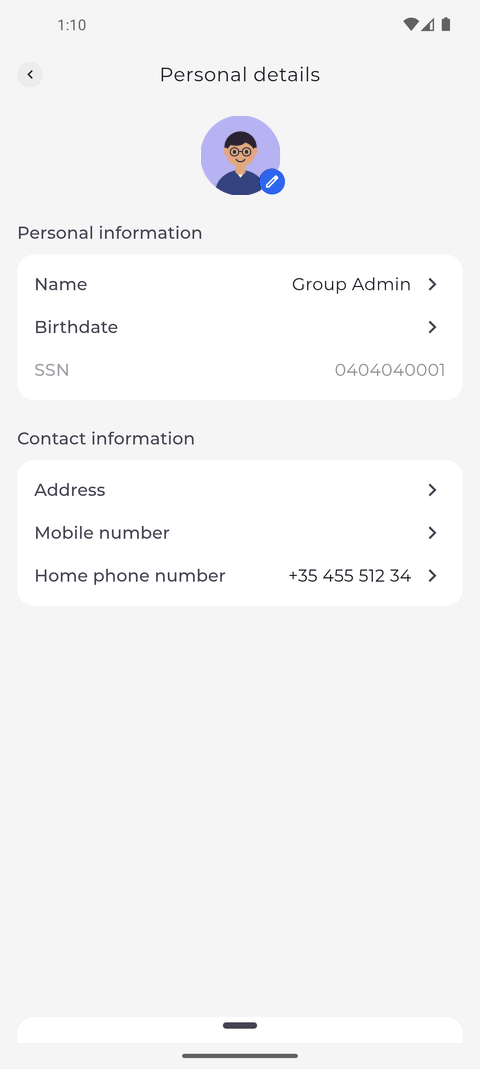
Step 2: The new number is saved under Contact information
The sheet closes, and the new number is shown on the Home phone number row under Contact information.
Tip: To remove a number, open it, clear the field and tap Save.
-
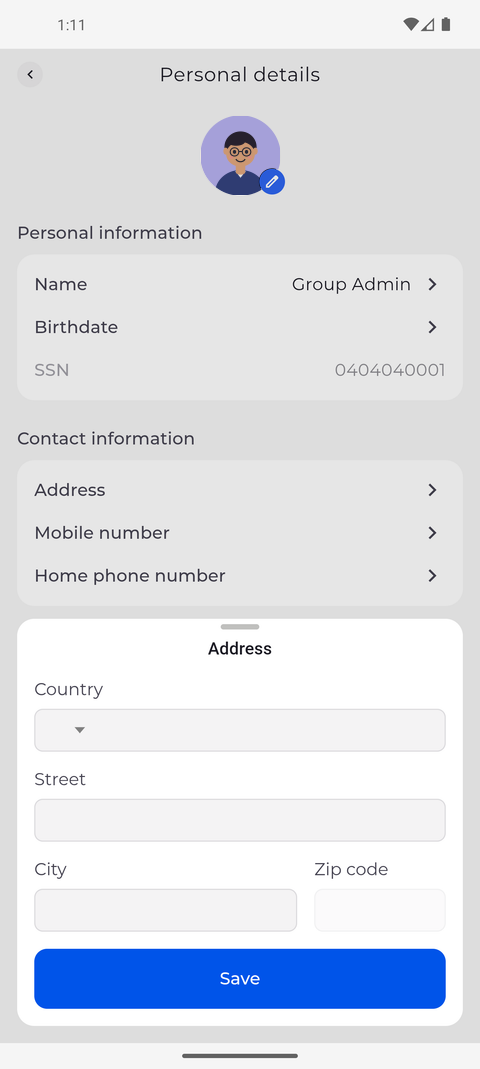
Step 3: The address editor has Country, Street and City; the Zip code cannot be changed here
To change your address, tap Address. The sheet has Country, which you pick from a list, Street and City. Change what you need and tap Save.
Tip: Zip code is greyed out because the app cannot change it. Ask your manager if it is wrong.
Tip: A part of the address you may not change is greyed out, and a part you may not see is left out of the editor.
Tip: Pick Country from the list. The countries are listed in Polish when the app is in Polish, and in English in every other language.
What happens next
Your phone numbers and address are saved in your profile and shown under Contact information.
Good to know
- If a line under Contact information is greyed out, your company does not let you change it in the app - ask your manager.