


Sign out from Settings
Sign out of the app from the last row of the Settings page.
Step by step
-
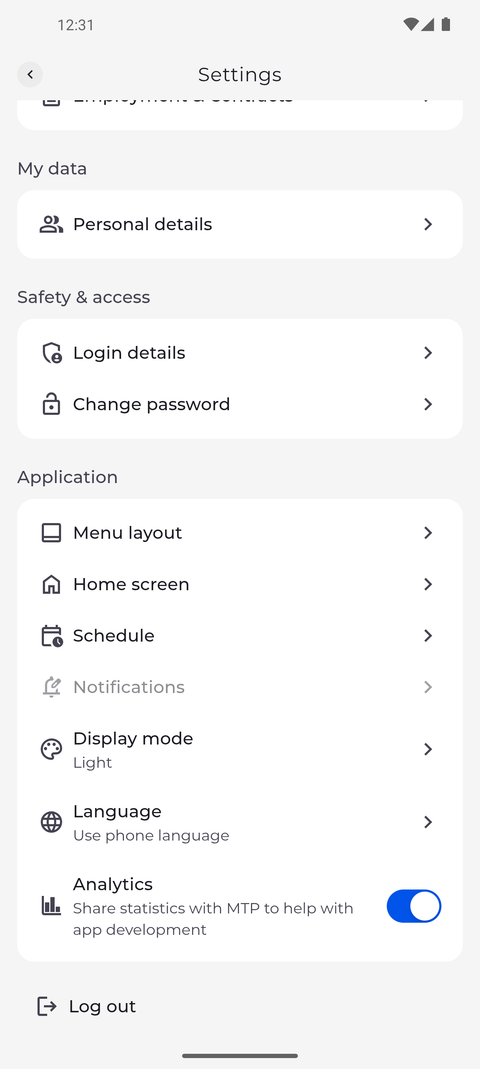
Step 1: Log out is the last row of Settings
Tap your profile picture at the top left of Home to open Settings, and scroll to the end of the page. Log out is the last row, below the Application section.
Tip: Log out here does the same as Log out in the More menu.
-
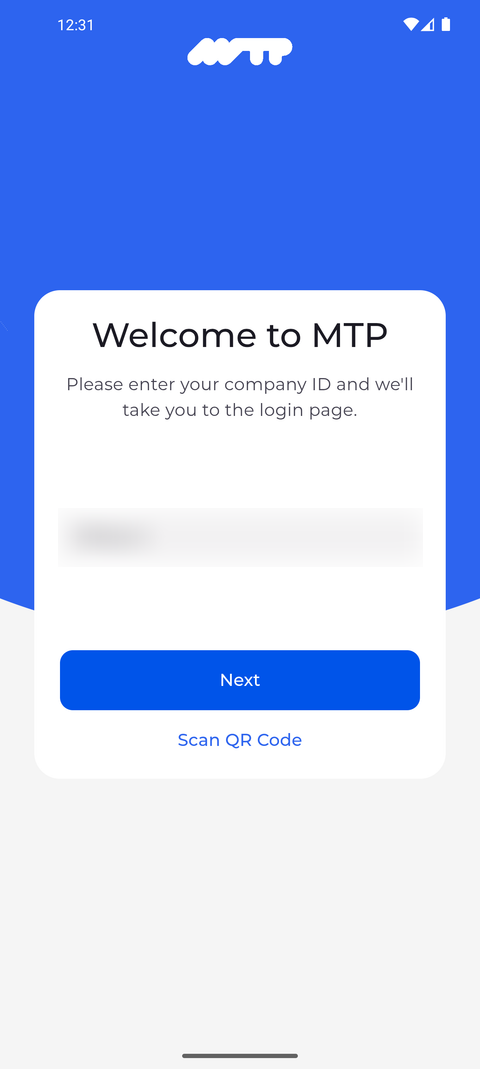
Step 2: You are signed out right away - there is no confirmation
Tap Log out. The app goes straight to the Welcome to MTP screen, and Home and the bottom bar are no longer shown.
Tip: To sign in again, you type your company ID on Welcome to MTP first, then your username and password.
What happens next
You are signed out of the app on this phone.
Good to know
- Signing out removes your sign-in from this phone, but not your language, display mode, Home widgets, menu layout or Schedule settings - they stay for whoever signs in next.
- After you sign out, this phone no longer receives MyTimePlan notifications for you until you sign in again.