


Change your name
Correct your first or last name in Personal details.
Before you start
You need:
- Your company lets you change your first or last name in the app - otherwise the Name row is greyed out
New to the app? Start with Sign in to the MyTimePlan app.
Step by step
-
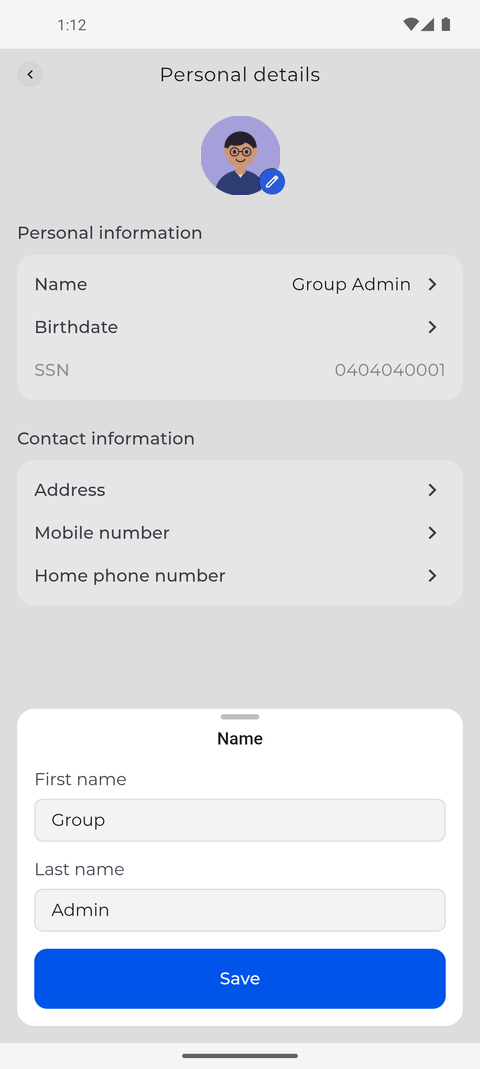
Step 1: Change your first or last name and tap Save
Tap your profile picture at the top left of Home to open Settings, then tap Personal details and Name. A sheet opens with First name and Last name, filled in with your current name. Change what you need and tap Save.
Tip: A field you may not change is greyed out, and a part of the name you may not see is left out of the editor.
Tip: Swipe the editor down to close it without saving.
-
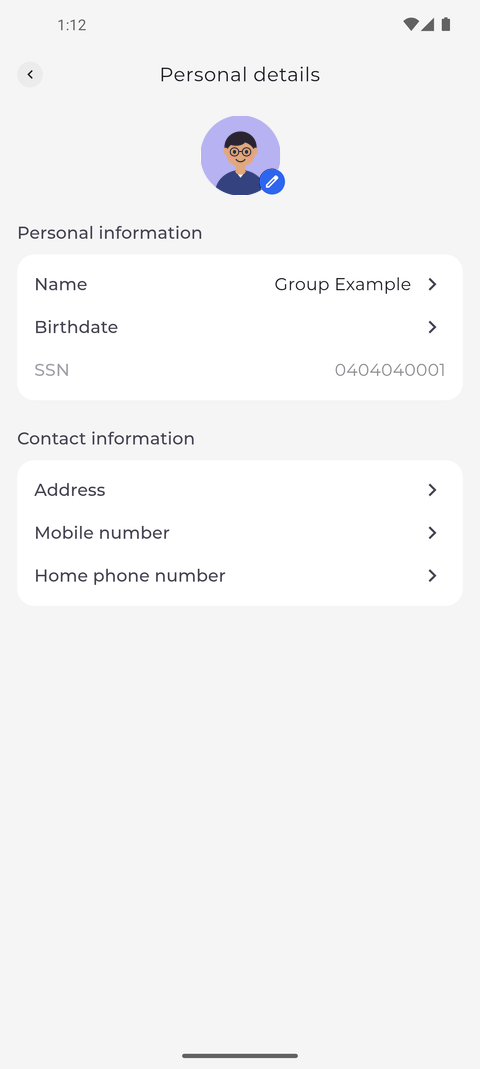
Step 2: The new name is saved and shown right away
The sheet closes, and the Name row under Personal information shows your new name right away.
Tip: The app confirms with "Personal details updated". If it says "Operation failed", your name was not changed.
Tip: While the name is being saved, Save shows a spinner and cannot be tapped again. The editor closes once the name is saved; if saving fails, it stays open with what you typed.
What happens next
Your new name is saved in your profile and shown on the Name row.
Good to know
- The profile at the top of Settings shows the new name as well.
Questions
Why can I not open the Name row?
The row is greyed out when your company does not let you change your name in the app. Ask your manager.