


See your personal details
Personal details shows the personal and contact details your company keeps about you, and opens the ones you may change.
Step by step
-
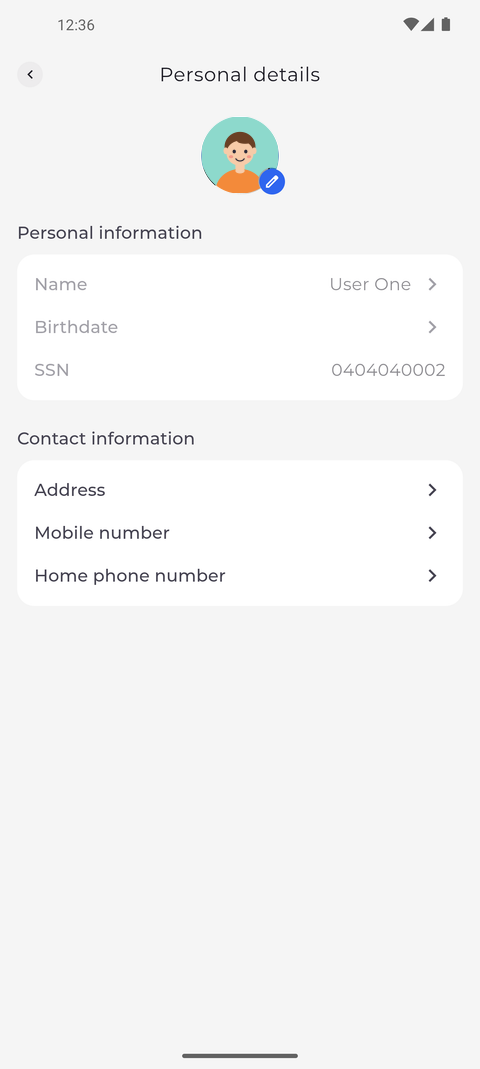
Step 1: Personal details lists what your company keeps about you; tap a line to change it
Tap your profile picture at the top left of Home to open Settings, then tap Personal details. Your picture is at the top; below it, Personal information lists your Name, Birthdate and SSN, and Contact information your Address, Mobile number and Home phone number. Tap a line in dark text to change it - here the lines under Contact information.
Tip: A greyed-out line cannot be changed in the app - tapping it does nothing. Your company decides which details you may edit.
Tip: SSN can never be changed in the app.
Tip: The pencil on your picture changes or removes it. If there is no pencil, changing your picture is not enabled for your account.
What happens next
You see the details your company keeps about you and know which of them you can change.
Good to know
- You only see the details your company lets you see. If Personal information or Contact information is missing, you may not see any detail of that section - ask your manager.
- Address shows the street with the zip code, followed by the city.