


Add your schedule to a calendar app
Copy iCal URL copies the link to your schedule, so you can add your schedule to a calendar app.
Step by step
-
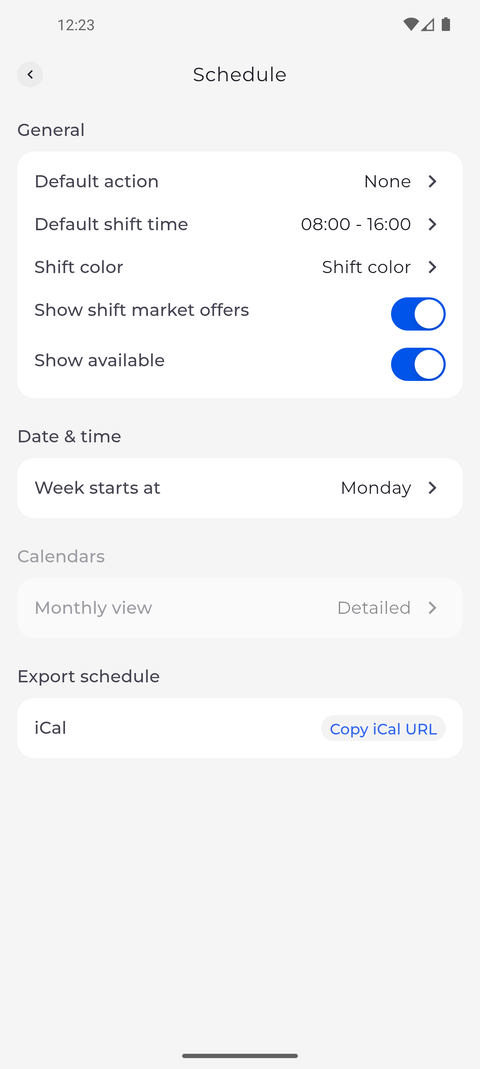
Step 1: Export schedule at the bottom of the Schedule settings has Copy iCal URL
Tap your profile picture at the top left of Home to open Settings, then tap Schedule. At the bottom of the page, under Export schedule, the iCal row has the Copy iCal URL button. Tap it.
Tip: The link is made for your own account and shows your own schedule.
-
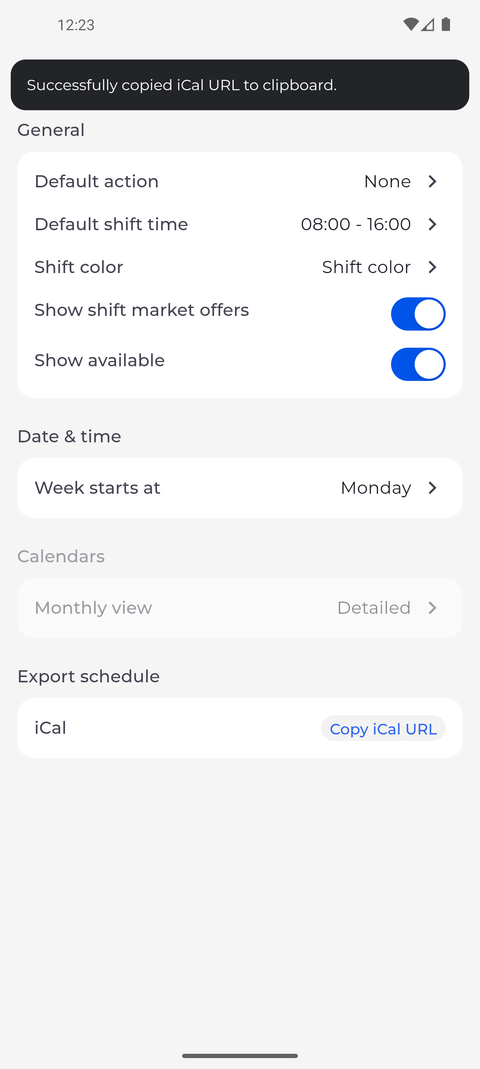
Step 2: The app confirms that the link is on your clipboard
The message Successfully copied iCal URL to clipboard. appears at the top of the screen. The link is now on the clipboard of your phone.
Tip: The message stays at the top of the screen for a few seconds and covers the page header meanwhile.
Tip: Copying the link changes nothing in your account, so you can copy it as often as you need.
What happens next
The link to your schedule is on the clipboard of your phone, ready to paste into your calendar app.
Questions
What if the app shows a warning instead of "Successfully copied iCal URL to clipboard."?
The link was not copied. Tap Copy iCal URL again.