


The Schedule settings
The Schedule page of Settings holds what new entries in your schedule start with, how your schedule looks, and the link to export your schedule to a calendar app.
Step by step
-
Step 1: Schedule settings decide how your schedule looks and what new entries start with
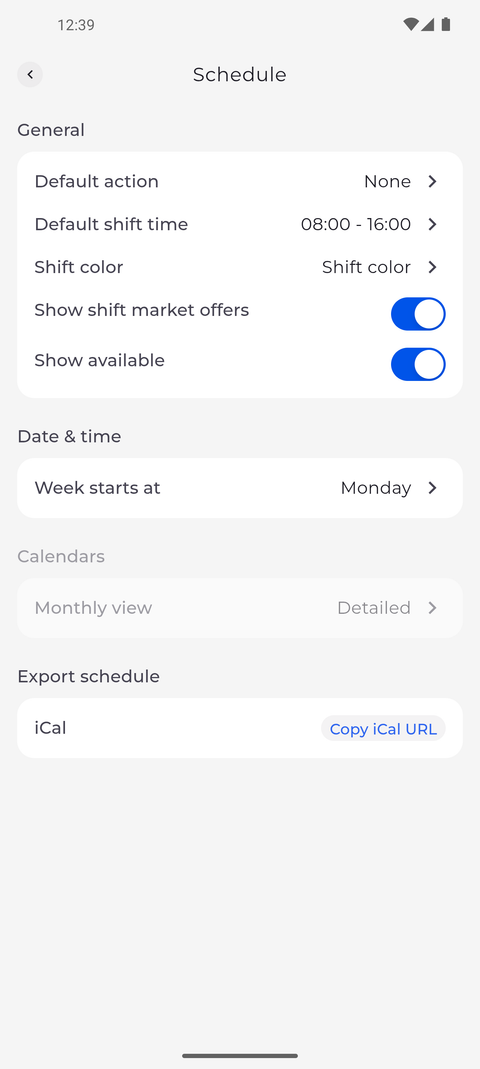
Tap your profile picture at the top left of Home to open Settings, then tap Schedule in the Application section. General holds Default action, Default shift time, Shift color and the switches Show shift market offers and Show available. Below it, Date & time has Week starts at, Calendars has Monthly view, and Export schedule has the iCal row with Copy iCal URL.
Tip: Default action is the action a new shift starts with. If that action cannot be used for the shift, the app picks another one.
Tip: Default shift time gives the hours a new shift starts with. You can still change them in the shift itself.
Tip: Monthly view under Calendars is greyed out: it is not available yet, and tapping it only shows "Feature coming soon!".
What happens next
You know where the defaults for new schedule entries and the calendar export are.
Good to know
- Every change on this page is saved on this phone the moment you make it - there is no Save button.
- The Schedule settings belong to this phone, not to your account. They stay when you log out and apply to whoever signs in on this phone next.