


Add a tab to the bottom bar
Menu layout lets you put another page in the bottom bar. The bar holds up to three tabs next to Home and More.
Step by step
-
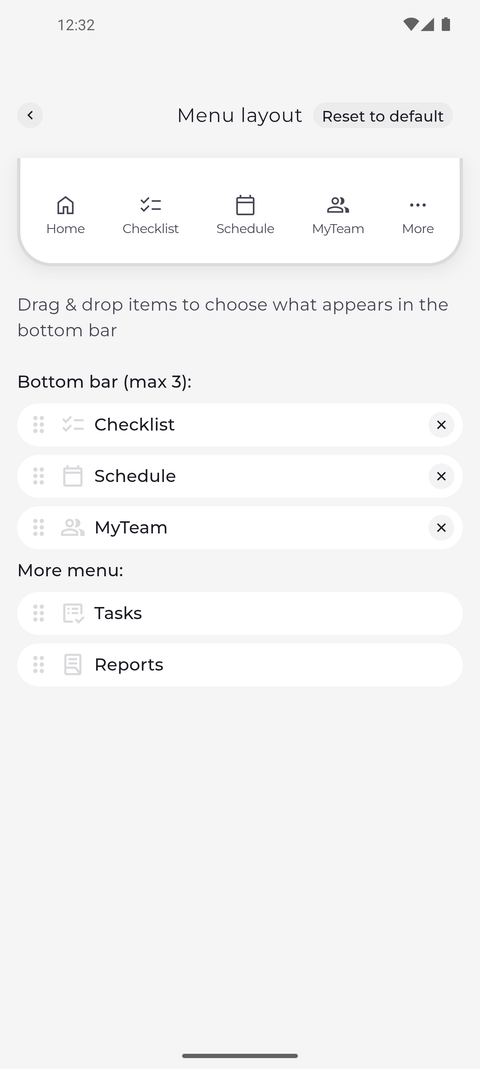
Step 1: Tap the plus next to a page to put it in the bottom bar - up to three tabs
Tap your profile picture at the top left of Home to open Settings, then tap Menu layout. Tap the blue plus next to a page under More menu: - here MyTeam. The page moves under Bottom bar (max 3): and appears in the preview of the bar at the top.
Tip: The plus buttons only appear while the bottom bar has a free place. It holds at most three tabs besides Home and More, so take one out with its cross first.
Tip: A page you add with the plus becomes the last tab of the bottom bar, just before More.
-
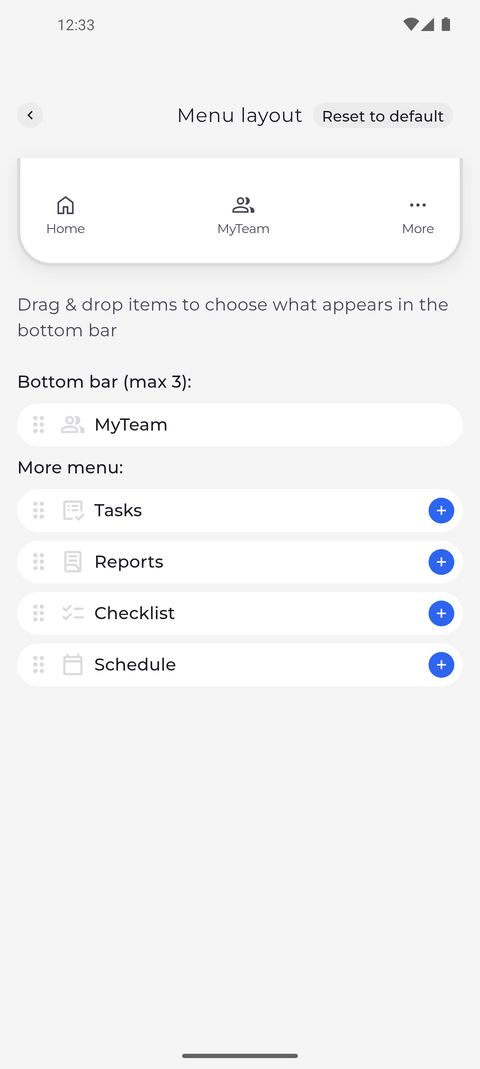
Step 2: One tab always stays in the bottom bar next to Home and More
Tap the cross next to a tab to take it out of the bar. Here only MyTeam is left: it has no cross, and every page under More menu: has a blue plus again.
Tip: A tab you take out with the cross goes to the end of the More menu: list.
Tip: Dragging follows the same limits: a drag that would leave more than three tabs or none in the bottom bar snaps back.
-
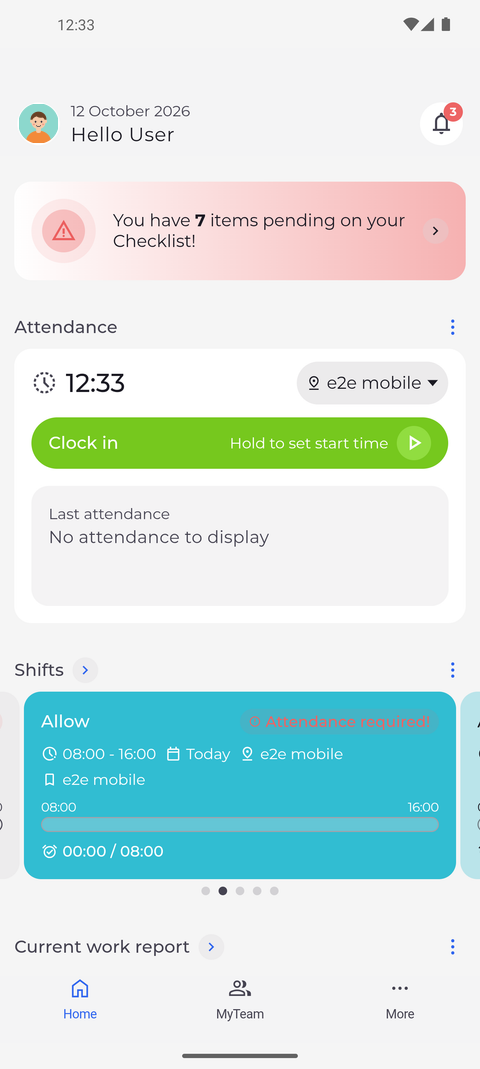
Step 3: The bottom bar now shows MyTeam
Go back to Home. The bottom bar now shows the page you added - here MyTeam - between Home and More.
What happens next
The bottom bar shows the tabs you chose on this phone until you change them or tap Reset to default.
Good to know
- Each change is saved on this phone the moment you make it - there is no Save button.
- The lists only offer the pages your account can open. If Employee task view or Tasks is missing, it is not enabled for you - ask your manager.