


Filter your team
In MyTeam, the filters narrow the list of the chosen day by status, attendance, unit or person.
Before you start
You need:
- Your account can see at least one unit - MyTeam lists the people of the units you can see
New to the app? Start with Sign in to the MyTimePlan app.
Step by step
-
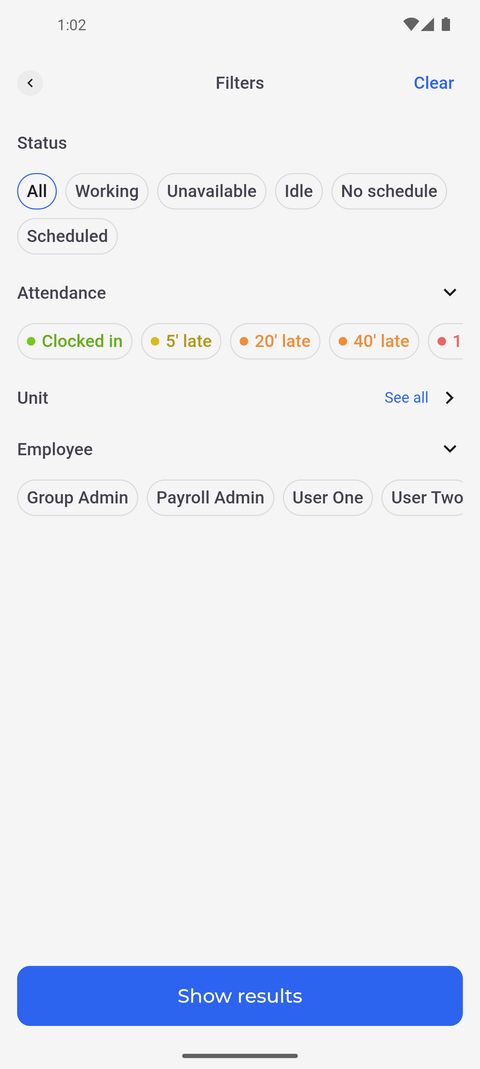
Step 1: Filters shows status, attendance, unit and employee in one place
Tap More in the bottom bar, then MyTeam, and tap Filters. The Filters page shows the choices for Status, Attendance and Employee right on the page, and Unit with See all.
Tip: Status takes one choice: Working (clocked in now), Unavailable (time off), Idle (neither of the two), No schedule or Scheduled. All clears it.
Tip: Under Attendance you can pick several: Clocked in and the lateness levels from "5' late" to "1 h late". Each level means at least that late.
Tip: Nothing changes in the list until you tap Show results. Clear empties every choice, and the back arrow leaves without applying.
Tip: Choosing a Unit loads only the people of those units. With no unit chosen, MyTeam shows everyone in all the units you can see.
-
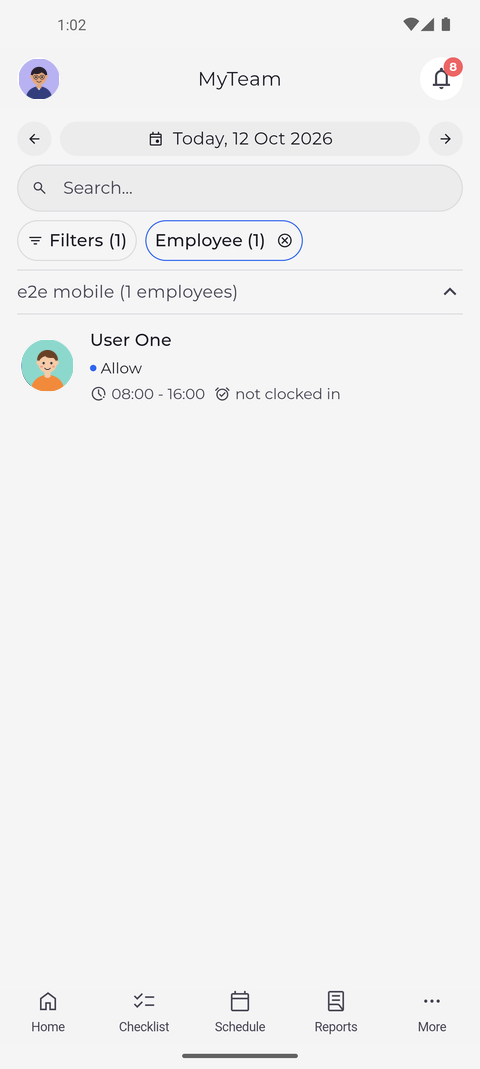
Step 2: With a filter chosen, only the matching colleagues stay
Under Employee, tap a colleague and then Show results. MyTeam now lists only that person, in the group of their unit.
Tip: With a Status, Attendance or Employee filter, every group with a match opens by itself; groups without a match are not shown.
Tip: A filter in use gets its own chip with the number of choices, and Filters shows how many filters are active. Tap the cross on a chip to clear that filter.
Tip: Tap a chip, for example Employee, to change only that filter. Your choice applies as soon as you tap Done - there is no Show results step.
What happens next
Only the colleagues you are looking for are listed until you clear the filter.
Good to know
- Your filters stay as they are when you switch to another day with the arrows.