


Find a task view
Employee task view lists the task views of your company's task system. You can find a view by name and star the ones you use most.
Before you start
You need:
- Your company uses the task system - without it, the More menu has no Employee task view
New to the app? Start with Sign in to the MyTimePlan app.
Step by step
-
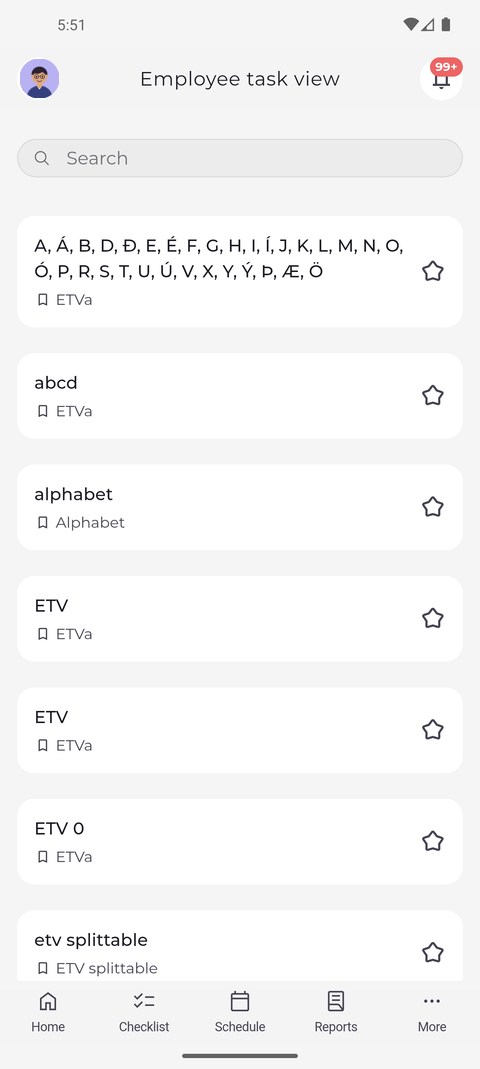
Step 1: Employee task view lists your company's task views with their project
Tap More in the bottom bar and choose Employee task view. The page lists the task views, each with its name, its project below the name and a star on the right. The Search field sits above the list.
Tip: Starred views come first, the others follow in alphabetical order.
Tip: Tap a view to open it in a window inside the app. Close the window to come back to the list.
-
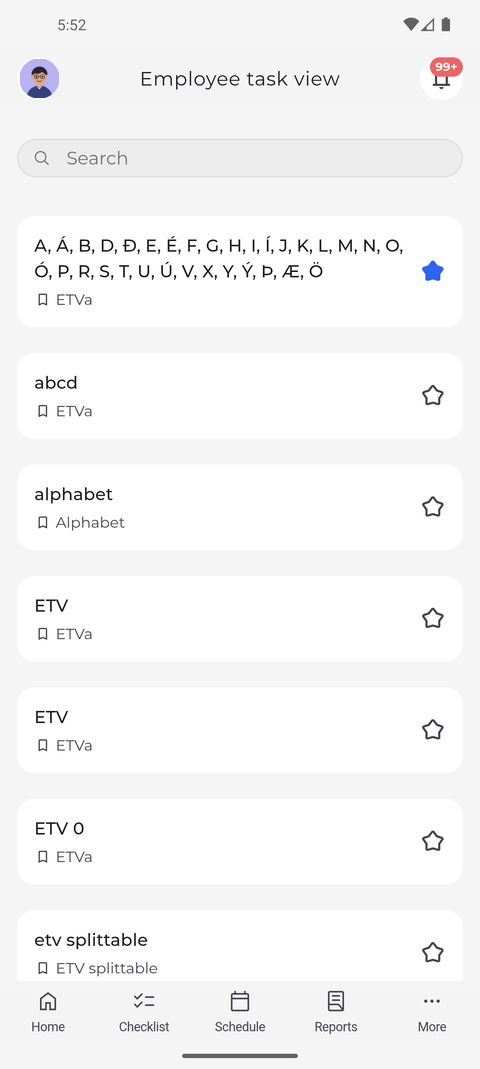
Step 2: Tap the star to keep a view at the top of the list
Tap the star next to a view you use often. The star fills in blue to show that the view is a favourite. Tap it again to remove the star.
Tip: Stars are saved on this phone only. They do not carry over to another phone.
-
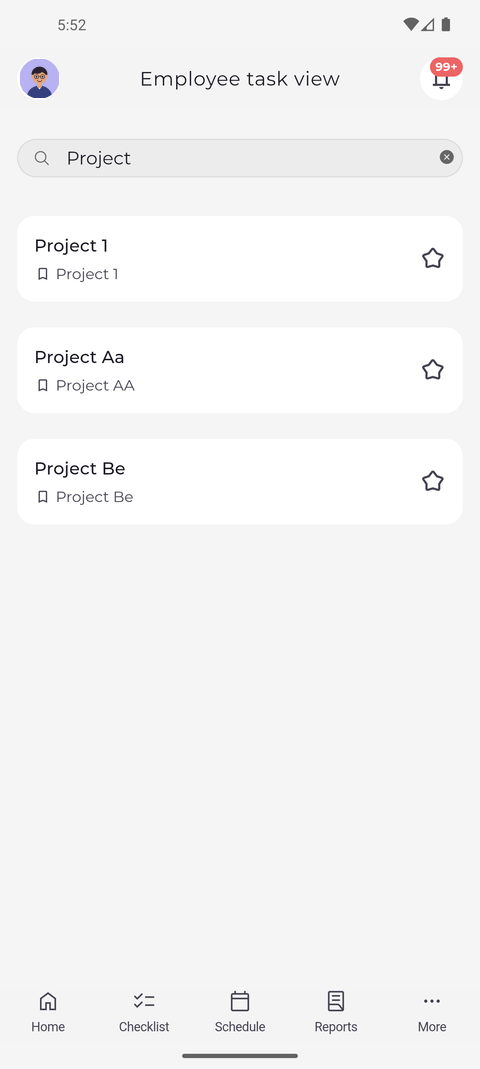
Step 3: Type part of a name to find a view
Tap Search and type part of the name you are looking for. The list shrinks to the views that match, and the cross at the end of the field clears what you typed.
Tip: Search matches any part of a view's name or of its project. With several words, a view has to contain all of them.
What happens next
The view you need is quick to find.
Good to know
- If the page says "You don't have access to this feature.", your account has no access to the task system - ask your manager.