


See your task report for a period
The Task report shows your attendances, task plans and works - the time recorded while you carry out a task plan - for a period you choose, split by day, week or month.
Before you start
You need:
- Your account can see task plans - without that, the Task report says "You don't have access to this report."
New to the app? Start with Sign in to the MyTimePlan app.
Step by step
-
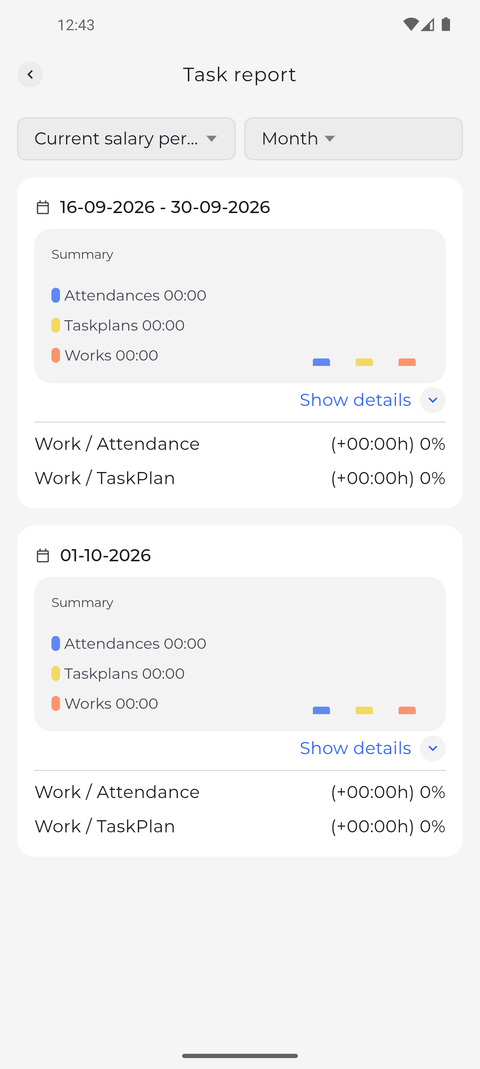
Step 1: The Task report opens on your current salary period, split by month
On Home, tap the arrow next to the title of the Task report widget. The Task report opens with Current salary period and Month in the fields at the top. Each card starts with its date and shows the Summary of your attendances, task plans and works, then Work / Attendance and Work / TaskPlan.
Tip: The left field picks the period, the right one how it is split: Day, Week or Month, one card each.
Tip: The split only offers what fits the period - for Today and Yesterday only Day, for a week Day or Week. If the split you had does not fit the new period, it moves to the largest one that does.
-
Step 2: Show details lists the shifts and attendances behind the figures
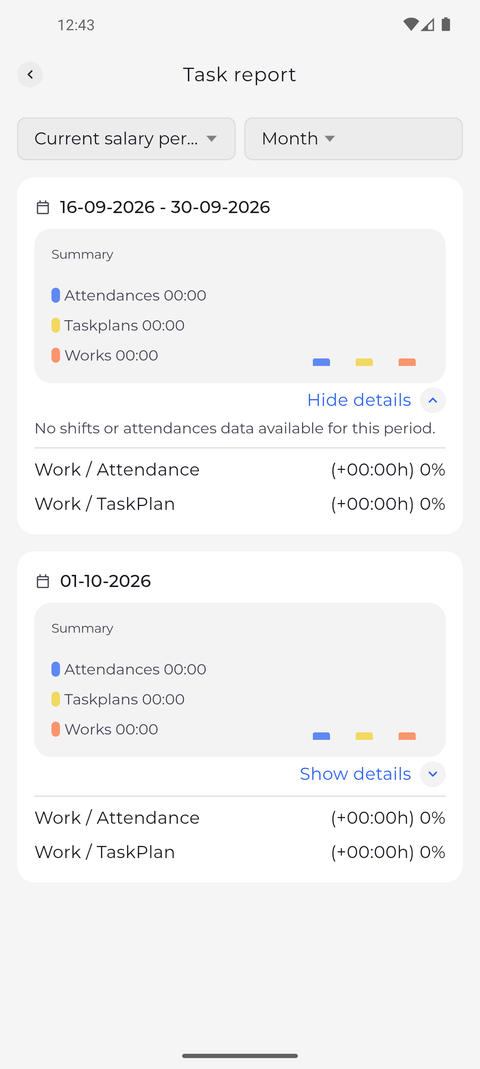
Tap Show details on a card. The shifts and attendances behind its figures unfold below the Summary. Tap Hide details to fold them again.
Tip: Tap a shift card to open its details.
Tip: "No shifts or attendances data available for this period." means nothing was recorded in the period of that card.
What happens next
You see how your attendances, task plans and works add up for the period.
Good to know
- The period you choose here is also used by the Task report widget on Home, and the other way round.
Questions
Why does the Task report say "Couldn't load the report."?
The app could not fetch the report, usually because of the connection. Go back and open the Task report again.