


See your team's schedule
As a manager, you can switch the Schedule from your own shifts to the schedule of everyone in your units, and back.
Before you start
You need:
- Your account can see the units of your team - the team view lists the people of the units you can see
New to the app? Start with Sign in to the MyTimePlan app.
Step by step
-
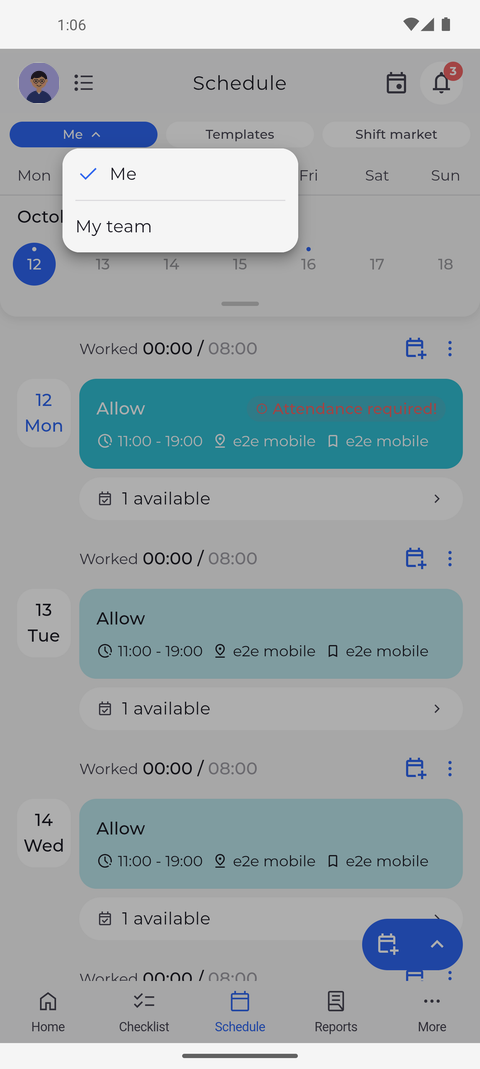
Step 1: Tap the first pill to choose between your own schedule and your team's
Tap Schedule in the bottom bar. The first pill at the top reads Me while you see your own schedule. Tap it: a menu opens with Me, marked with a tick, and My team.
Tip: If you are on Templates or Shift market, the first tap on the pill only takes you back to the schedule list. Tap it again to open the menu.
Tip: The app remembers Me or My team on this phone, so the schedule opens the way you left it.
-
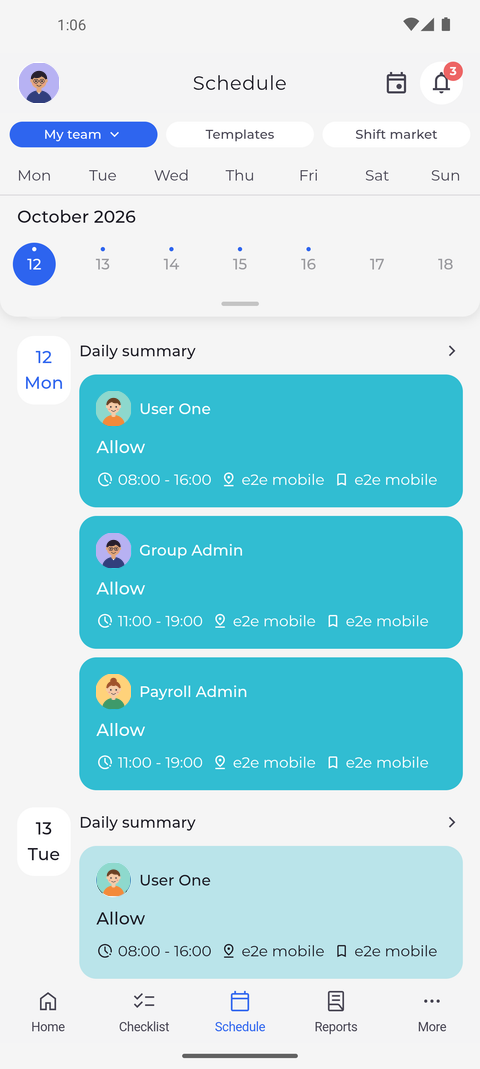
Step 2: My team lists the day of everyone in your units, with who is late or away
Tap My team. The pill now reads My team, and under the week strip each day lists one card per colleague, with their name, the action, the hours and the unit.
Tip: Tap Daily summary on a day to see how many people are late, not clocked in or unavailable. On days ahead, only unavailable people are counted.
Tip: Tap a colleague's card to open their shift, or a leave to open the request behind it.
What happens next
You see who works when in your units, day by day. To get back to your own shifts, tap My team and choose Me.
Good to know
- The My team view is only for looking. It has no add buttons and no Agenda / Day / Month menu; Templates and Shift market always show your own data.
- A day on which nobody in your units has anything planned says "Nothing planned".
- If the list says "Could not load the team schedule", pull down on the header at the top of the screen to try again.