


Open Settings and Notifications
Your profile picture and the bell at the top of the main screens take you straight to Settings and to your notifications.
Step by step
-
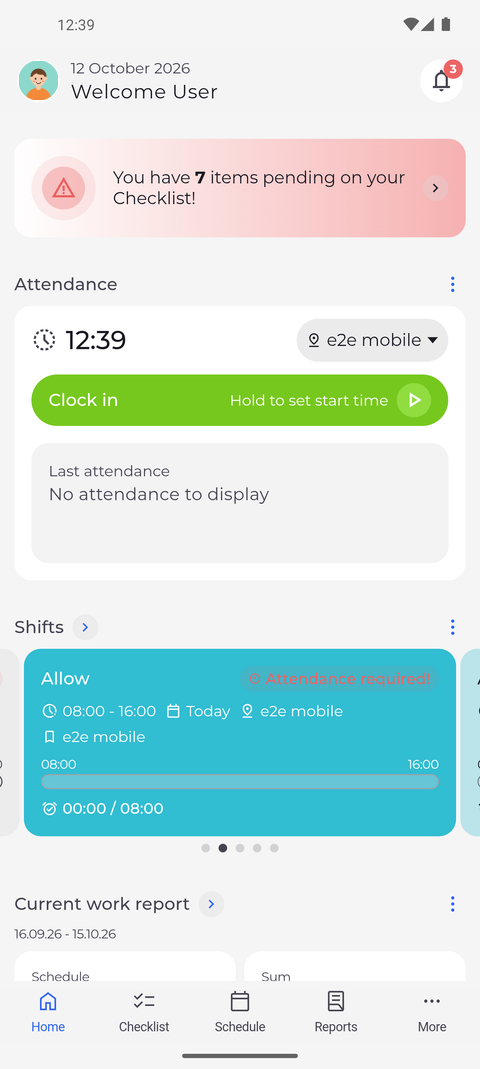
Step 1: Your picture at the top left opens Settings, the bell at the top right opens Notifications
At the top of Home, your profile picture is at the left, next to today's date and a greeting with your first name, and the bell is at the right. Tap the picture to open Settings, or the bell to open your notifications.
Tip: A number on the bell counts your unread notifications. From 100 on, it shows "99+".
Tip: On Home, Checklist, Reports, MyTeam and Tasks the header slides away while you scroll down and comes back when you scroll up. On Schedule it stays in place.
Tip: On Home the header greets you and shows today's date. On the other main screens it shows the name of the screen between your picture and the bell.
-
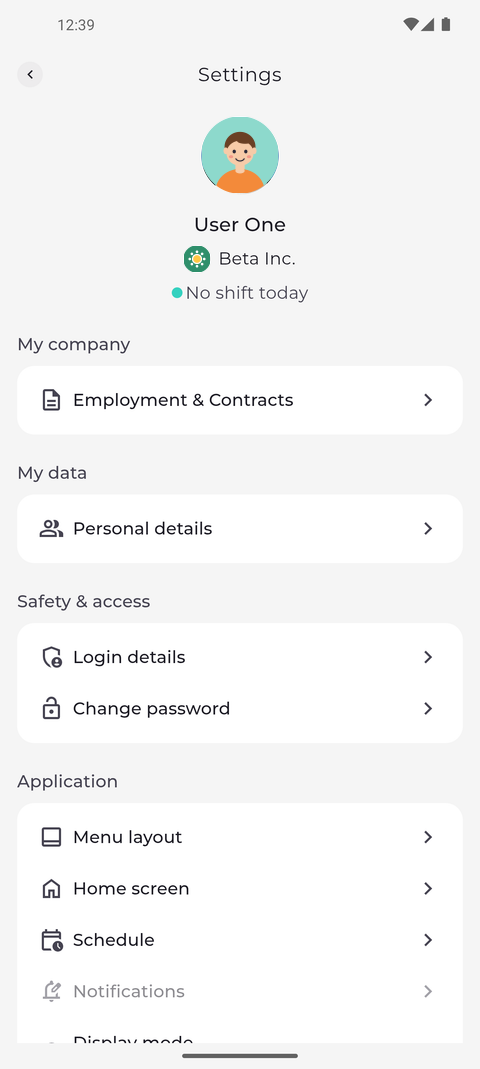
Step 2: The avatar takes you straight to Settings
Tap your picture. Settings opens on your profile, with your company and your data below it. To go back, tap the arrow at the top left.
What happens next
Settings and your notifications are one tap away from the top of every main screen.
Good to know
- If your account may not read notifications, the bell opens the Requests tab instead of All notifications.