


The Home screen and its widgets
Home is the first screen you see after you sign in. It shows widgets for the things you use most, and you choose which ones appear.
Step by step
-
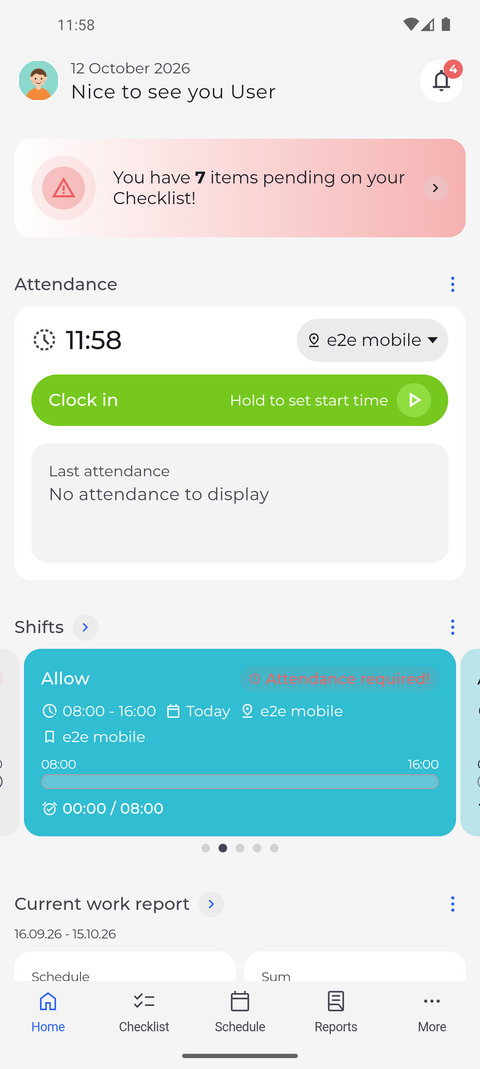
Step 1: Your Home screen, with the widgets you have turned on
At the top of Home you see today's date and a greeting with your first name. Below them, the widgets are stacked one under the other, starting with Attendance, Shifts and Current work report. Which widgets you see depends on what your account can do.
Tip: Pull the Home screen down to reload all widgets.
Tip: When you have open checklist items, a banner "You have N items pending on your Checklist!" sits above the widgets. Tap it to open Checklist.
Tip: Tap the three dots next to a widget heading and choose Hide widget to remove it from Home.
Tip: Tap your profile picture at the top left to open Settings.
-
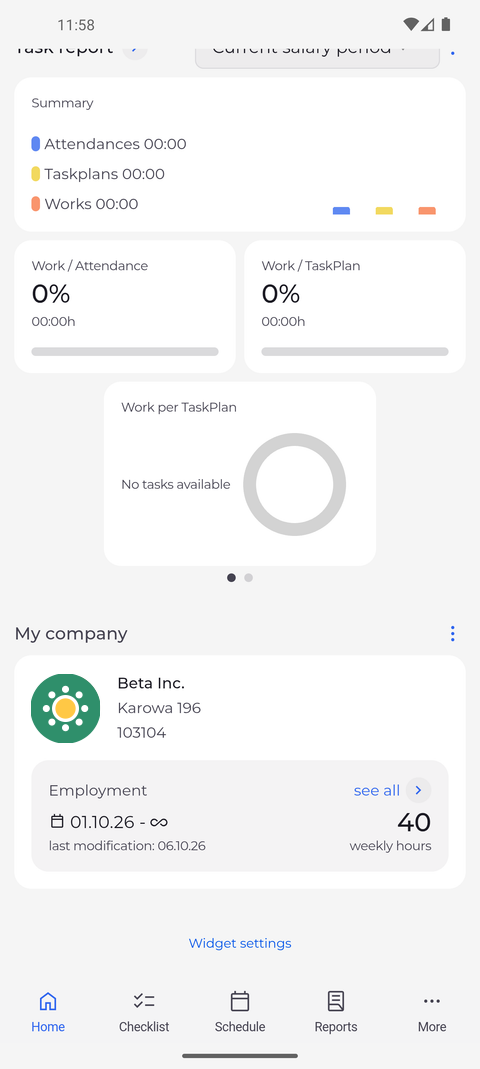
Step 2: Scroll to the bottom to choose which widgets you see
Scroll to the bottom of Home, past the last widgets such as Task report and My company. Tap Widget settings to open the Home screen settings, where you hide widgets and change their order.
Tip: Widget settings opens Home screen: drag a widget by its handle to change the order, tap the cross to hide it and the plus to show it again.
Tip: Some widgets have a shorter name there - Shifts is listed as Next shift, Current work report as Current report and Salary period info as Schedule info.
What happens next
Home shows only the widgets you keep turned on, in the order you set under Widget settings.
Good to know
- When you come back to the app after more than 30 seconds, Home reloads its widgets by itself.
- If you do not see a widget that a colleague has - for example Attendance - your account does not have access to it, and Widget settings does not offer it either. Ask your manager.