


Hide a widget from Home
Every widget on Home has its own menu, from which you can hide it. Hidden widgets wait in Settings > Home screen, where you can show them again.
Step by step
-
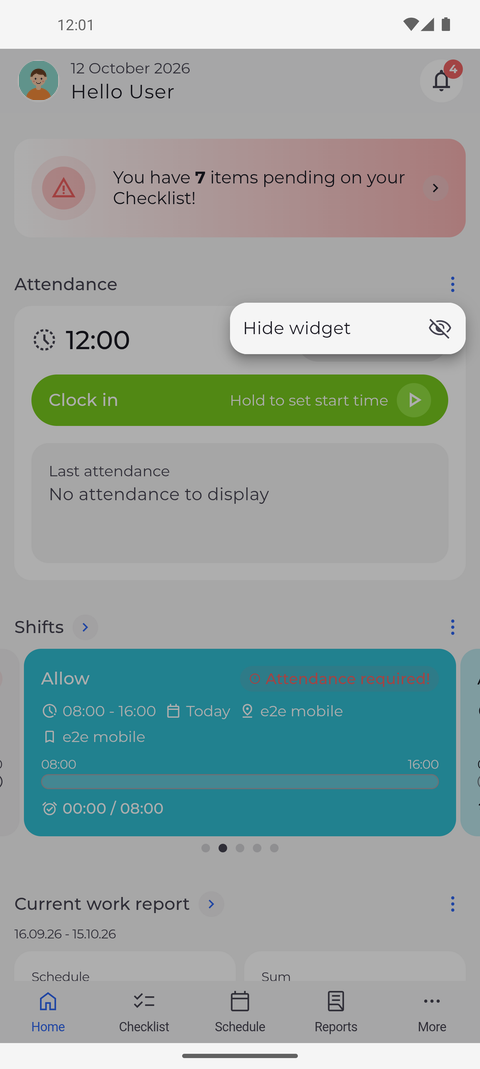
Step 1: Each widget has a menu in its top right corner
On Home, tap the three dots to the right of the heading of the widget you do not need - here Attendance. A small menu opens with Hide widget.
Tip: Widgets made of several figures, such as the current work report, the time banks or the task report, also offer Manage widget in this menu, where you choose which figures they show.
-
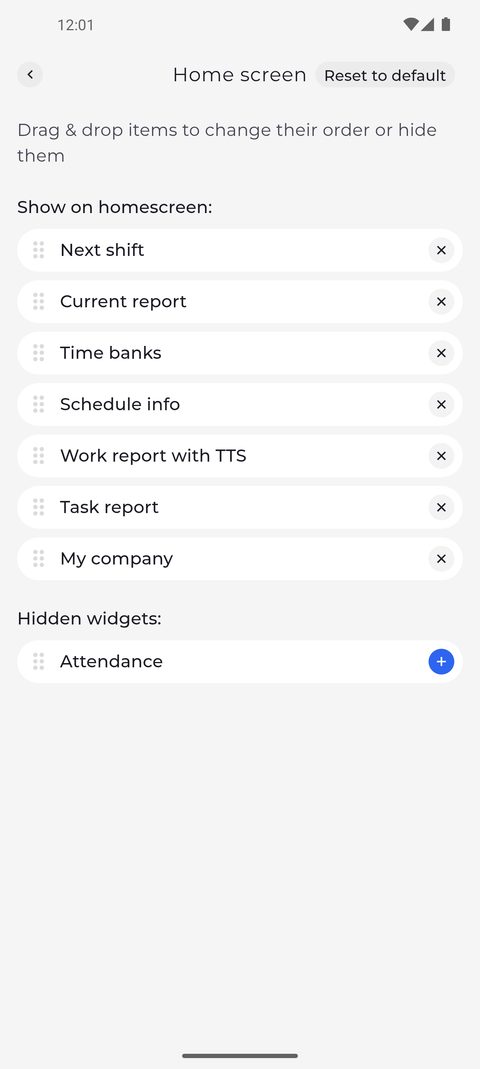
Step 3: Hidden widgets wait in Settings > Home screen - tap the plus to show one again
To show the widget again, open Settings from the More menu and tap Home screen. The widgets on Home are listed under Show on homescreen: and the ones you have hidden under Hidden widgets:. Tap the plus next to a hidden widget to put it back on Home.
Tip: Reset to default shows every widget again, in the original order.
Tip: The plus puts the widget back at the end of Show on homescreen:, so it returns at the bottom of Home. Drag it up by its handle to move it.
What happens next
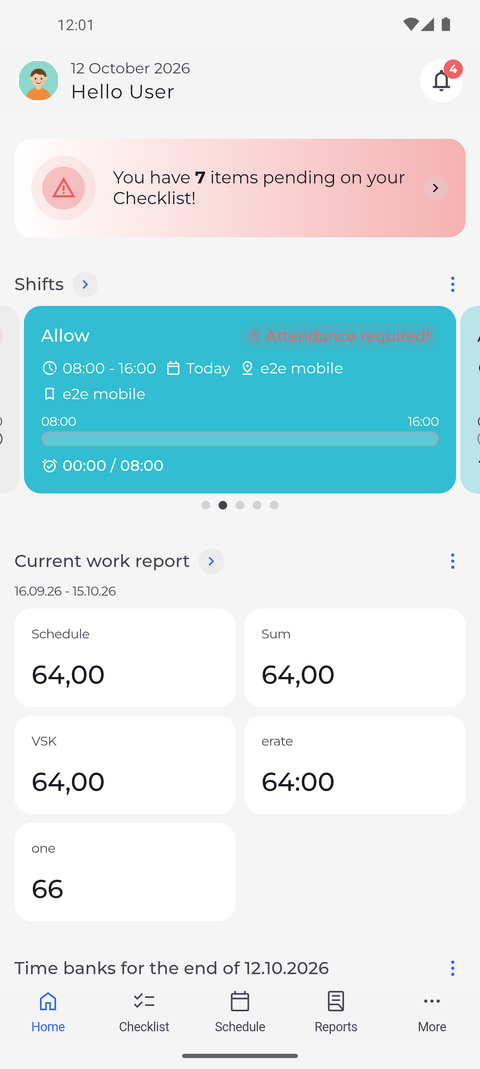
The widget stays off Home until you show it again in Settings > Home screen.
Good to know
- Home and Hidden widgets: only list the widgets your account can use. If a widget you are looking for is in neither place, your account has no access to it - ask your manager.