


See your next shifts on Home
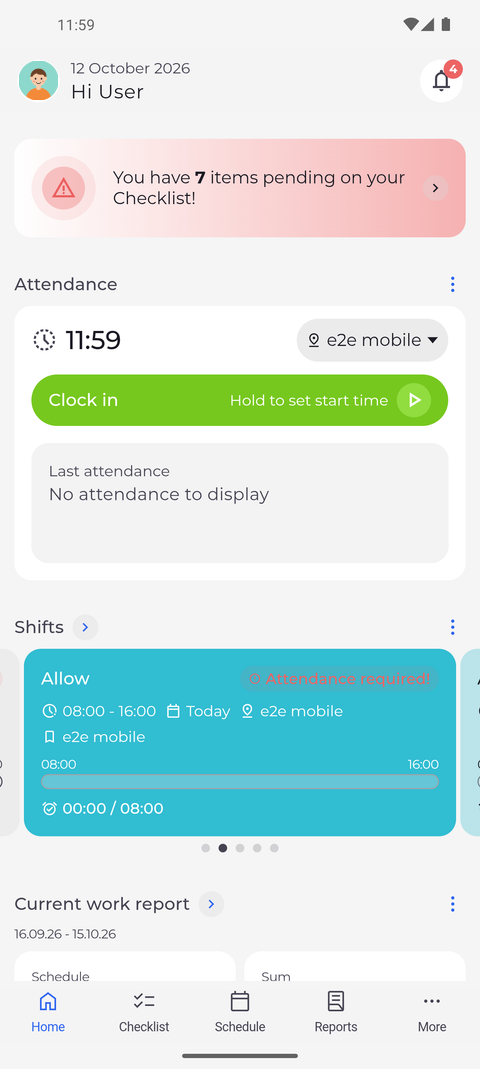
The Shifts widget on Home shows your shifts and attendances around today as cards. Tap a card to see its details.
Before you start
You need:
- A shift or an attendance in the days around today
New to the app? Start with Sign in to the MyTimePlan app.
Step by step
-
Step 1: The Shifts widget shows your next shifts and attendances as cards
On Home, scroll to Shifts. Each card shows a shift or an attendance with its times, day and unit, a bar from start to end and how long it lasts.
Tip: The cards cover your shifts and attendances from three days ago to three days ahead.
Tip: The widget opens on the card that matters now - your running attendance, the shift in progress or the next shift. Swipe sideways to see the others.
Tip: "Attendance required!" on a card means the shift has started but no attendance is recorded for it yet.
Tip: Cards of yesterday, today and tomorrow say Yesterday, Today or Tomorrow; the others show the date.
-
Step 2: Tap a card for the details of the shift
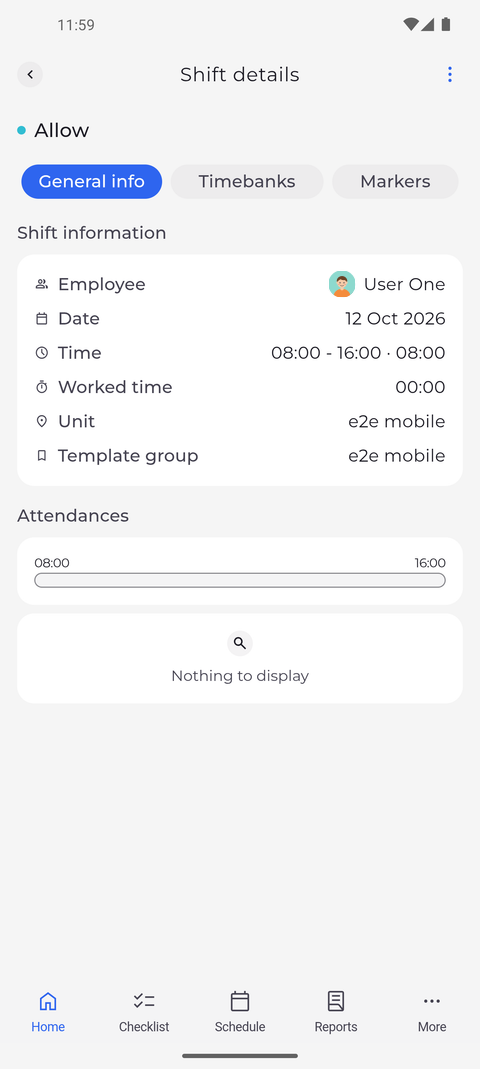
Tap the card to open its details. Shift details opens: Shift information lists the employee, date, time, worked time, unit and template group, and below it Attendances shows the attendances recorded for the shift.
Tip: A shift opens on General info. The Timebanks and Markers tabs next to it show what the shift adds to your time banks and the markers recorded for it.
Tip: Until you clock in for the shift, Attendances says "Nothing to display" and Worked time reads 00:00.
Tip: Pull Shift details down to load the shift again, for example after you clocked in for it on another device.
What happens next
You know what is planned for you in the coming days without opening the schedule.
Good to know
- The arrow next to Shifts opens your Schedule.
- With no shift or attendance in those days, the widget says "Nothing to display".
- An attendance without a planned shift shows as a Without shift card. It opens a page of the same name, without tabs, that lists only the attendances - tap one to open its details.