


Open your pending Checklist items from Home
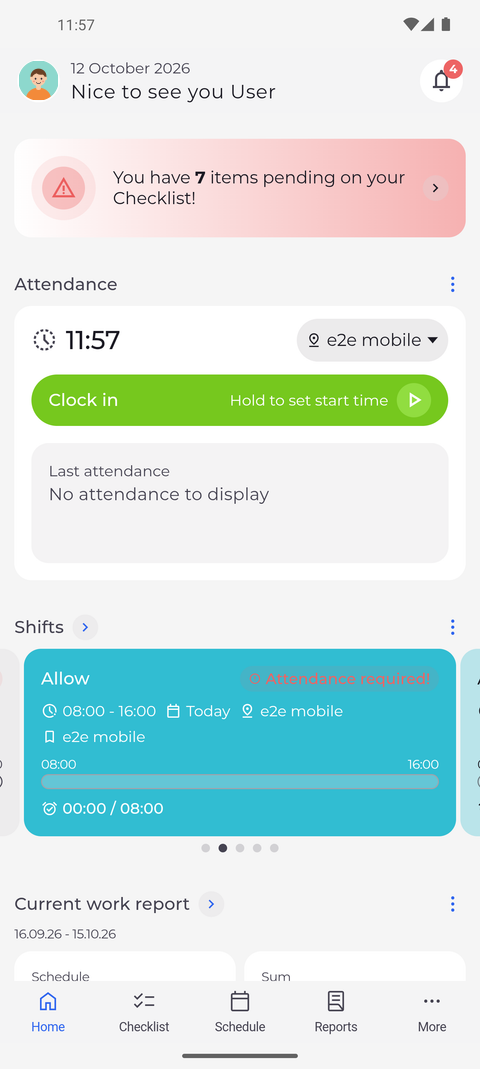
When items wait for you on the Checklist, a banner at the top of Home tells you how many there are. Tap it to go straight to them.
Before you start
You need:
- At least one item waiting on your Checklist
New to the app? Start with Sign in to the MyTimePlan app.
Step by step
-
Step 1: The banner at the top of Home counts what waits for you on the Checklist
On Home, the red banner above your widgets reads "You have ... items pending on your Checklist!", with the number of pending items in bold. Tap the banner or the arrow on its right.
Tip: The banner only appears while something is pending. With nothing waiting, Home starts with your first widget.
Tip: The number counts the same items as the Pending tab of the Checklist. Pull Home down to update it.
-
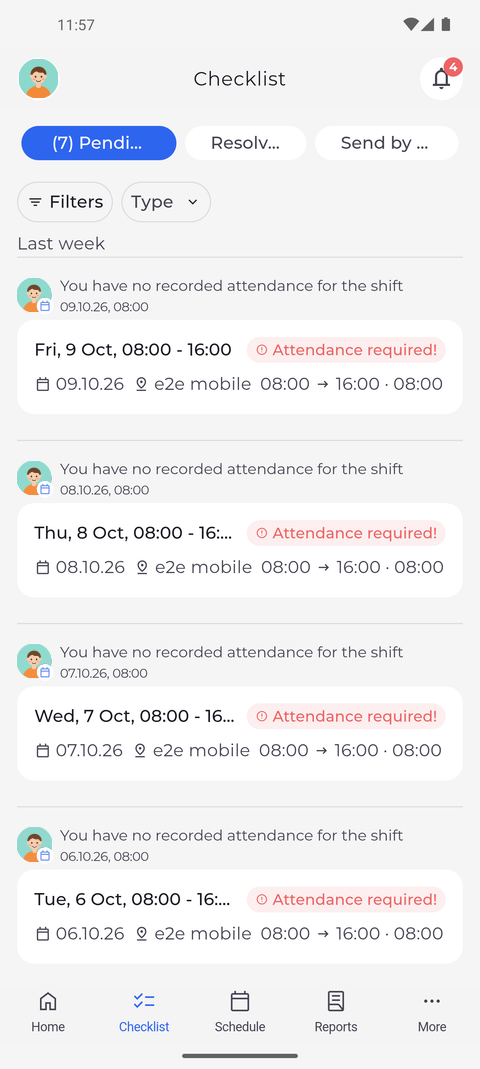
Step 2: The Checklist lists what is waiting on the Pending tab
Checklist opens on the Pending tab, with the same number in front of the tab name. Below Filters and Type, the waiting items are grouped by when they arrived, for example under Last week. Each item shows the person it concerns, what is waiting and when it arrived, above a card with the shift or request it is about - a shift without a recorded attendance is marked Attendance required!.
Tip: The Checklist opens on the tab you used there last - Pending, unless you switched to another tab since you signed in.
What happens next
You see the items that wait for your decision and can handle them in the Checklist.
Good to know
- The banner is not a widget. It has no menu, it cannot be hidden or moved, and it is always first on Home while items are pending.
- When you come back to the app after more than 30 seconds, Home counts your pending items again, so the banner appears, changes or goes away by itself.