


Open the Task report from Home
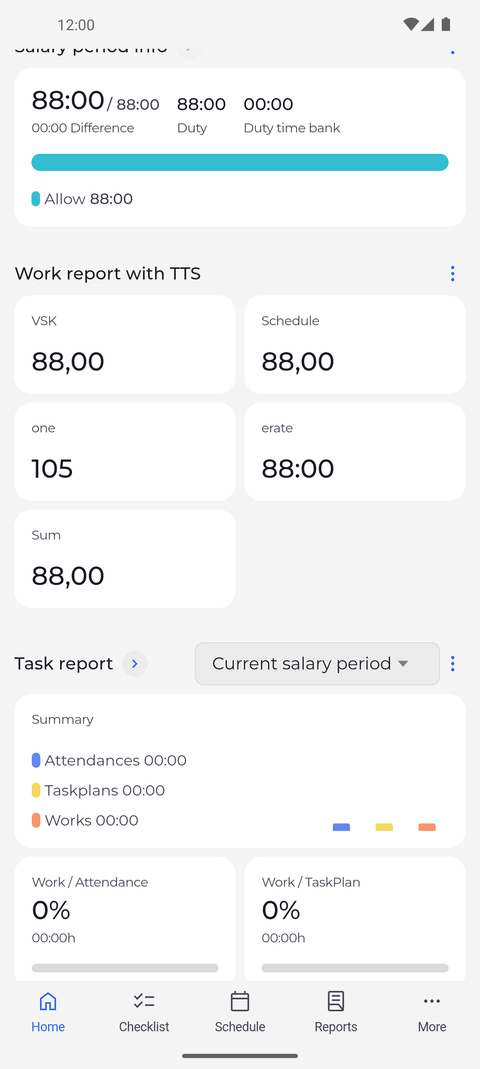
The Task report widget on Home compares your attendances, task plans and works - the time recorded while you carry out a task plan - for a period. Its arrow opens the full Task report.
Before you start
You need:
- Your account can see task plans - without that, Home shows no Task report widget
New to the app? Start with Sign in to the MyTimePlan app.
Step by step
-
Step 1: The Task report widget sums up your task hours for the chosen period
On Home, scroll down to Task report. The field next to the title shows the period, here Current salary period. Summary lists your attendances, task plans and works next to a bar chart, and the cards below give Work / Attendance and Work / TaskPlan as percentages.
Tip: The field next to the title picks the period: Current salary period (the default), Previous salary period, Today, Yesterday, Last week, Current week, This month or Last month.
Tip: The widget holds two cards: the period you chose and the one next to it, for example Today and Yesterday. Swipe sideways to switch between them.
Tip: "No tasks available" under Work per TaskPlan means no work on a task plan was recorded in that period.
-
Step 2: The arrow opens the full Task report
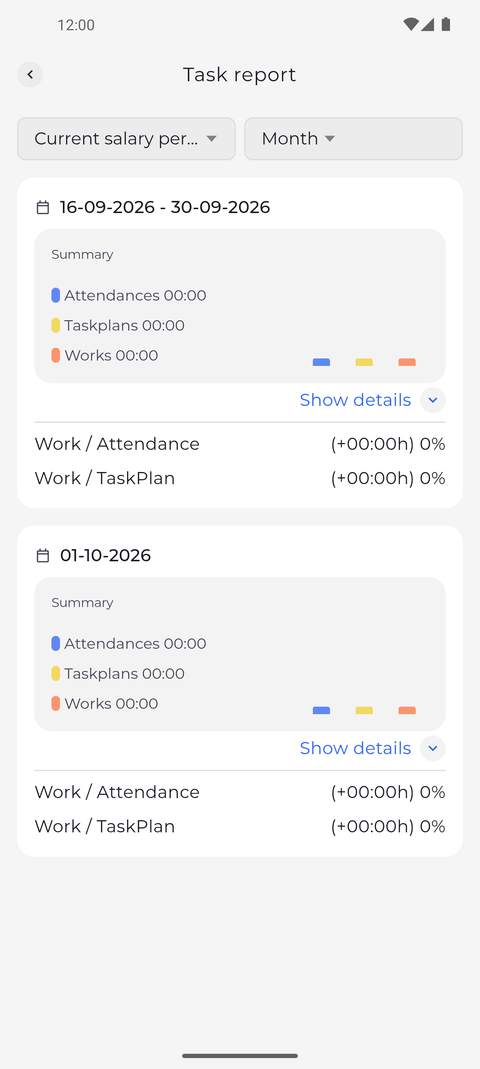
Tap the arrow next to Task report. The Task report page opens with the period and the interval, such as Month, at the top. Each card below starts with its date and shows the Summary, Work / Attendance and Work / TaskPlan; tap Show details to see more.
Tip: The Task report opens on the period you chose in the widget, and a period you pick in the Task report is used by the widget too.
Tip: The second field splits the period into Day, Week or Month cards. Today and Yesterday offer only Day, Current week and Last week offer Day and Week.
Tip: Show details under a summary lists the shifts and attendances of that card, with the work on each task plan.
What happens next
You see how your task hours compare with your attendance for the period.
Good to know
- To show only some parts of the widget, tap the three dots next to the title and choose Manage widget: you can keep or hide Summary, Work / Attendance, Work / TaskPlan and Work per TaskPlan.
- If Home has no Task report widget, your account cannot see task plans - ask your manager.