


Your Dashboard
The Dashboard is your own page of widgets. Each widget shows one dashboard list as a table or a chart, for the date range, periods and units it is set to.
Before you start
You need:
- Access to the Dashboard (Dashboard in the side menu)
- At least one widget on your Dashboard
New to the app? Start with Sign in to the web app.
When to use it
When you want a quick look at the figures of your units, period by period, without building a report.
Step by step
-
Step 1: The Dashboard shows your widgets as tables and charts
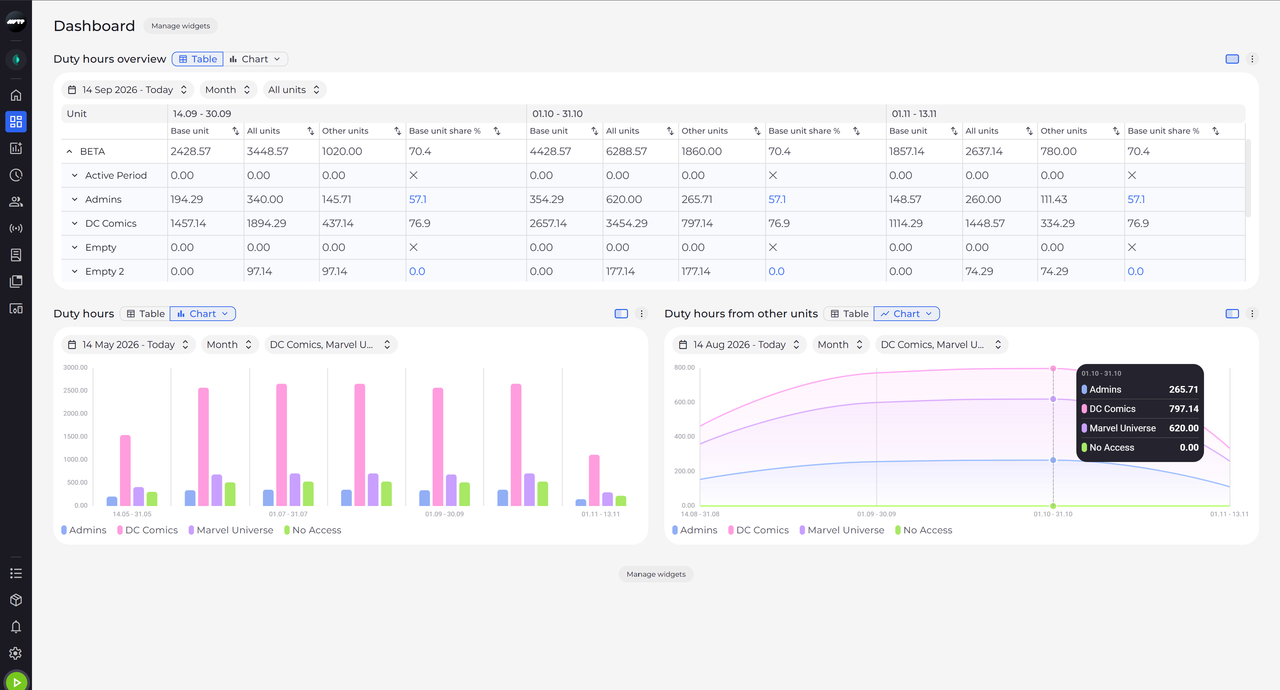
In the side menu on the left, click Dashboard (the icon with four squares). The page opens with your widgets - in this example a table across the top and, under it, a bar chart and a line chart. Hover over a chart to see the values of every unit for that period. Manage widgets is next to the page title and again under the last widget.
Tip: Each widget shows one list from Settings > Dashboard lists, under the list's name. Next to the name you switch between Table and Chart; the chips above the data set the date range, the resolution (such as Month) and the units.
Tip: The small rectangle button left of ⋮ switches a widget between Full width and Half width - hover over it to see which one it does. Two half-width widgets sit side by side.
What happens next
Your widgets are on the screen, each showing its dashboard list for the date range, resolution and units set on it. To add or take away widgets, click Manage widgets.
Good to know
- Whatever you change on a widget - view, size, date range, resolution or units - is saved for you straight away, so the Dashboard looks the same the next time you open it.
- A widget further down the page loads its data only when you scroll near it; until then it shows a grey placeholder.
- If the page says "The layout of this account can't be saved. Changes to widgets and filters are lost when you leave the page.", you are signed in with an account that cannot keep a layout, such as the built-in administrator account. You can still try out widgets and filters, but the page resets when you leave it.
Questions
Why don't I see Dashboard in the side menu?
The Dashboard entry, right under Home, appears only for users with access to the Dashboard. In the narrow side menu it is the icon with four squares under the house icon. Home is the start page you know from before. Ask your administrator if you need the Dashboard.