


Add, remove and arrange widgets
Use Manage widgets to choose which dashboard lists appear as widgets on your Dashboard and in which order. The same panel takes you to the lists themselves in Settings.
Before you start
You need:
- Access to the Dashboard (Dashboard in the side menu)
- A dashboard list in Settings > Dashboard lists that is not on your Dashboard yet
New to the app? Start with Sign in to the web app.
When to use it
When you want another widget on your Dashboard, want to take one away, or want to change their order.
Step by step
-
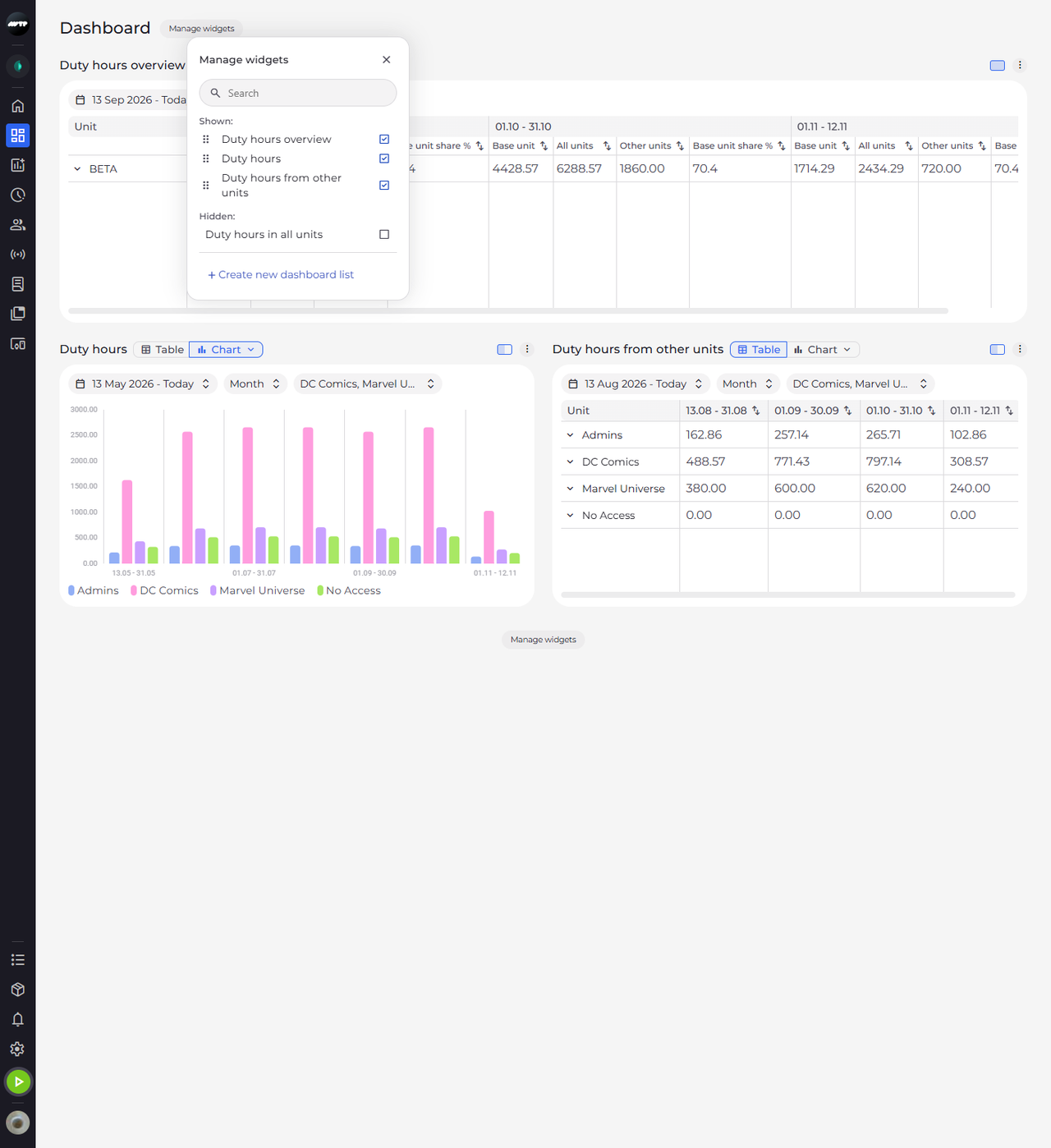
Step 1: Manage widgets lists the widgets on the page and the ones you can add
Click Manage widgets next to the page title. A panel opens with a Search field. Under Shown: are the widgets on your page, ticked and in the order they appear; under Hidden: are the lists you can still add.
Tip: Drag a widget by the dotted handle in front of its name to move it on the page. The handles don't work while there is text in Search - clear it first.
Tip: Each list can be on the page once. A list that already has a widget is under Shown:; Hidden: holds the others, sorted by name.
-
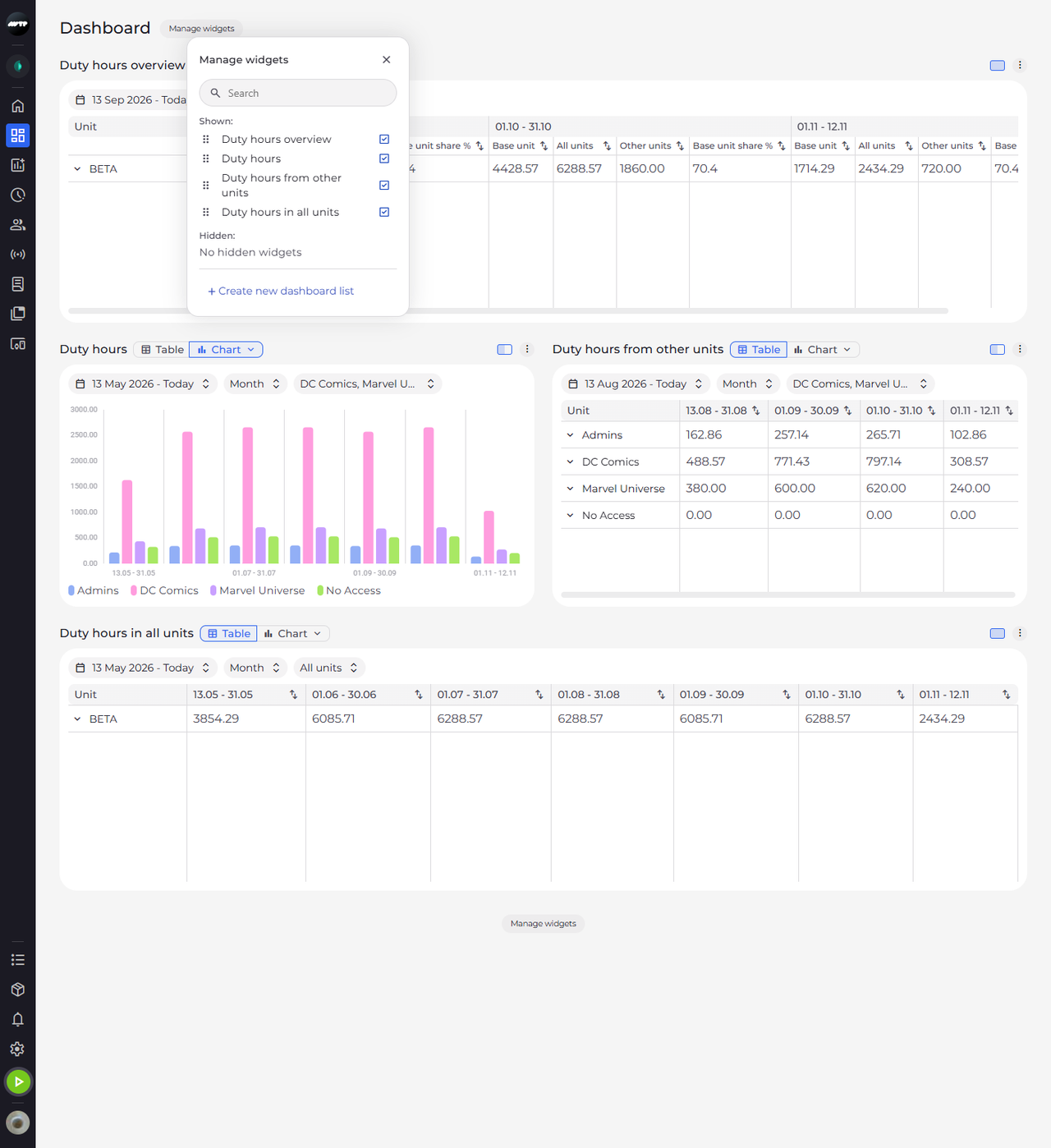
Step 2: Click a hidden widget to add it - it appears at the end of the page
Click a list under Hidden:. It moves up to Shown: with a tick, and its widget appears at the bottom of the page. The panel stays open, so you can add more lists.
Tip: A click on a widget under Shown: removes it from the page at once, without asking. Its date range, resolution, units and view are lost, and the list goes back under Hidden:.
-
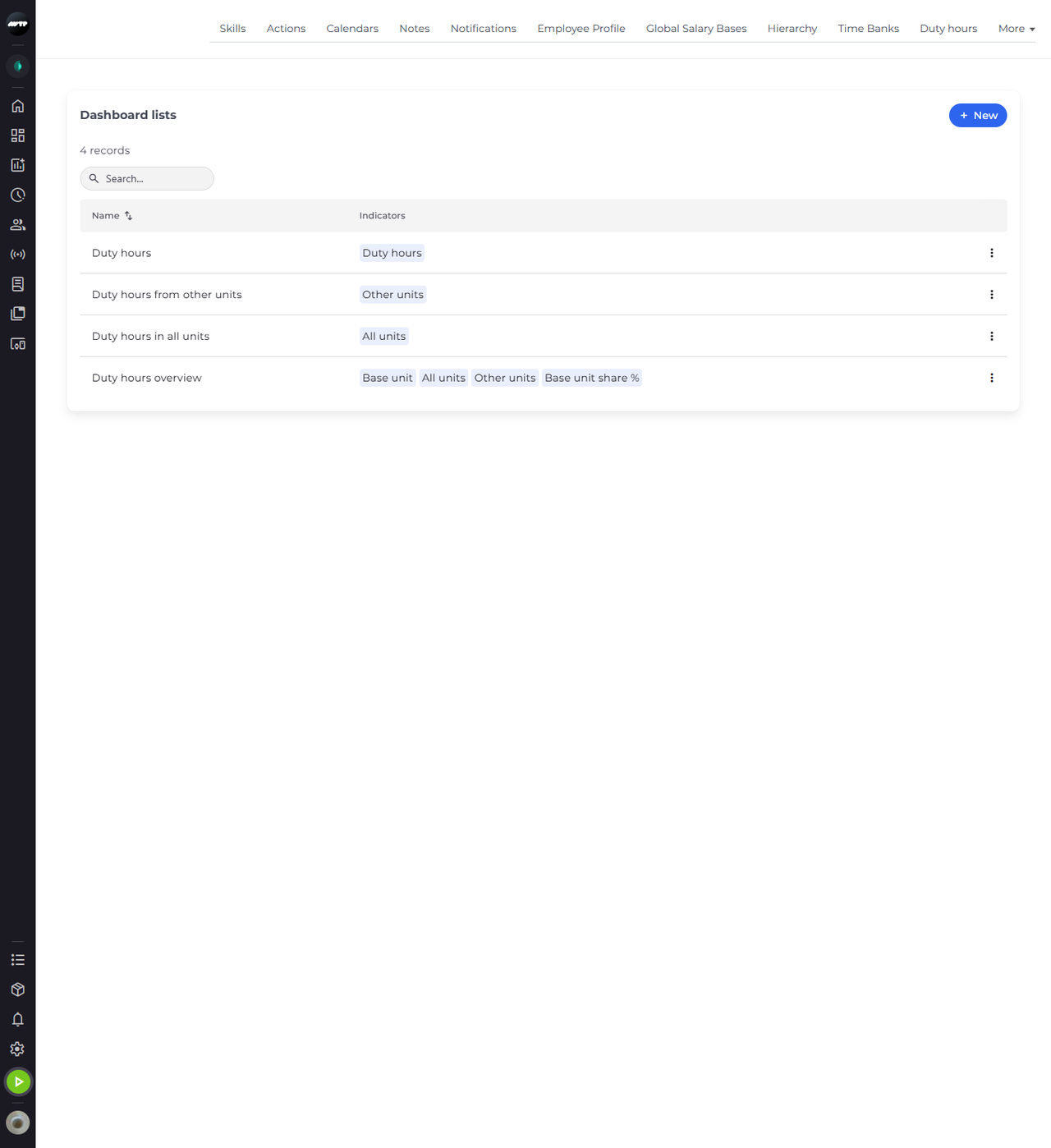
Step 3: Create new dashboard list takes you to the lists the widgets come from
Click Create new dashboard list at the bottom of the panel. Settings opens on Dashboard lists, where each list shows its Indicators - the columns its widget has on the Dashboard.
Tip: New and the ⋮ menu of each list appear only if you may change dashboard lists. Without that access the page only shows the lists - ask your administrator.
What happens next
Your Dashboard shows the widgets listed under Shown:, in that order. Lists under Hidden: wait in Manage widgets until you add them.
Good to know
- Under Hidden:, "No hidden widgets" means every list is already on your page; "No custom widgets yet" means there is no list to add yet.
Questions
Why does the Dashboard say "This custom widget was deleted in Settings." when I click a list?
The list you clicked under Hidden: was deleted in Settings in the meantime, so no widget is added. Manage widgets loads its lists again - choose another one.