


Remove a widget
Take a widget off your Dashboard with Remove widget in its ⋮ menu. Only the widget goes - its dashboard list stays in Settings.
Before you start
You need:
- Access to the Dashboard (Dashboard in the side menu)
- A widget on your Dashboard
New to the app? Start with Sign in to the web app.
When to use it
When you no longer need a widget on your Dashboard.
Step by step
-
Step 1: Click ⋮ in the corner of a widget
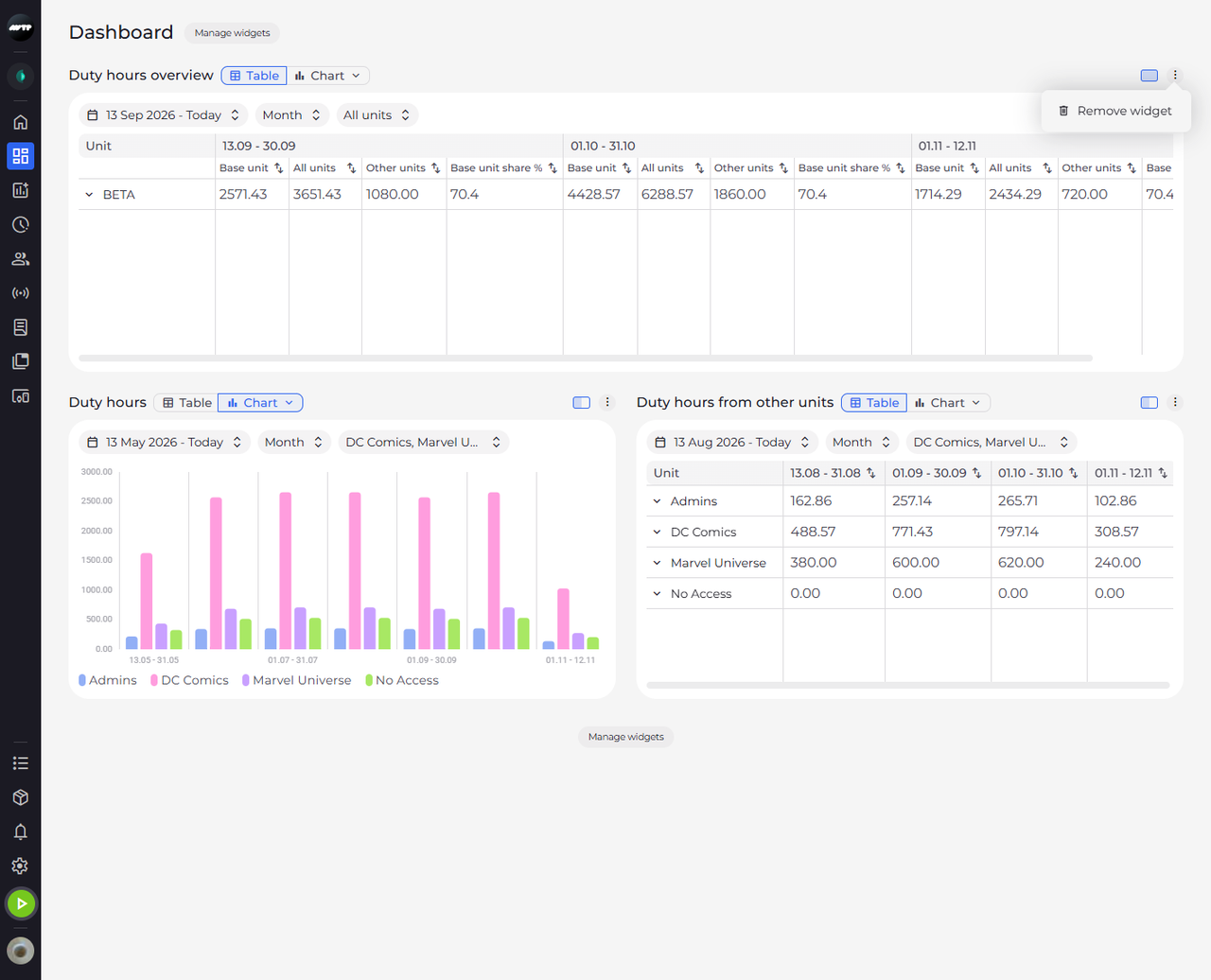
On the widget you want to remove, click ⋮ at the right end of its title row, next to the size button. A small menu opens below it. Click Remove widget.
Tip: Remove widget is the only entry in this menu. View, size and filters are changed on the widget itself.
-
Step 2: Confirm with Delete - the widget's filters are lost
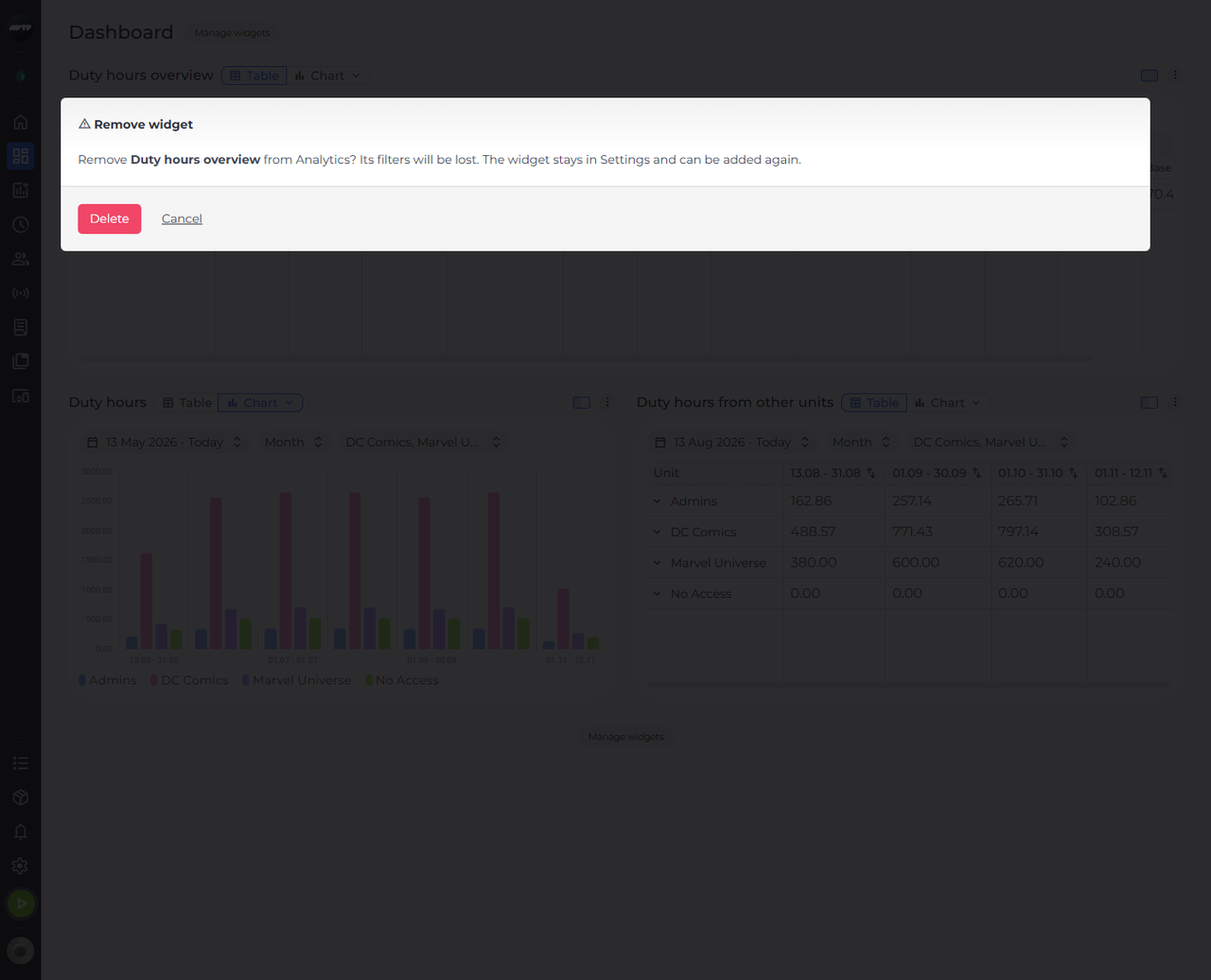
A Remove widget confirmation opens. It names the widget and tells you that the widget's filters will be lost. Click Delete to remove the widget, or Cancel to keep it.
-
Step 3: The other widgets move up
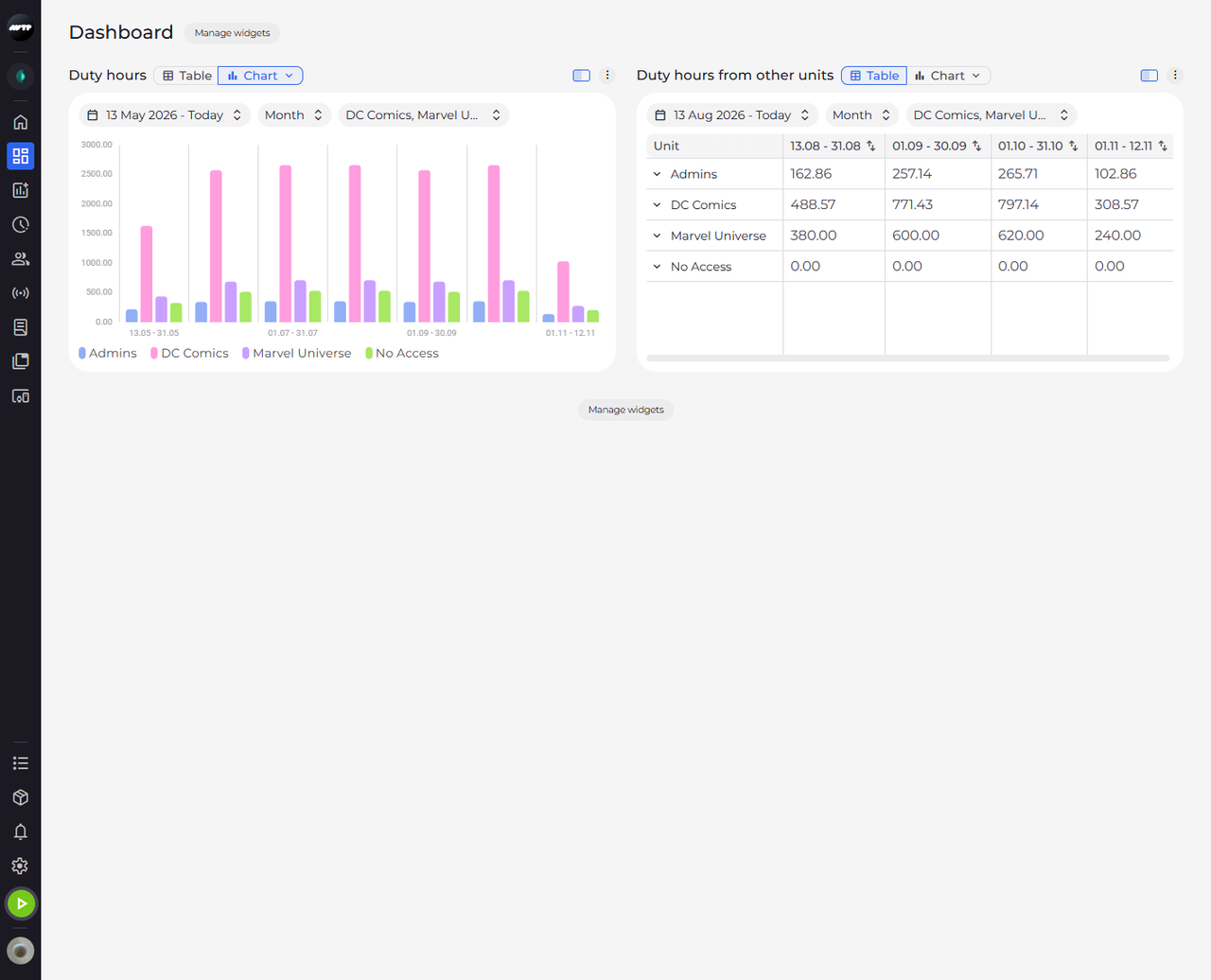
The widget is gone, and the widgets that were below it move up to take its place.
What happens next
The widget is no longer on your Dashboard, and the remaining widgets keep their order.
Good to know
- Removing a widget does not delete its dashboard list. The list stays in Settings > Dashboard lists and waits under Hidden: in Manage widgets, where one click adds it again.
- A widget you add again starts over with the default settings - Table, All units, Month and the last 6 months. The date range, resolution, units and view you had chosen are not kept.
- In Manage widgets, a click on a widget under Shown: removes it too - at once and without a confirmation.
Questions
Why is the removed widget back after I left the page?
Your account cannot keep a layout - the page says "The layout of this account can't be saved. Changes to widgets and filters are lost when you leave the page." The widget stays removed only until you leave the page.