


Edit a dashboard list
Change the name of a dashboard list or its indicators - their formulas, display styles and limits - in Settings > Dashboard lists.
Before you start
You need:
- Access to Dashboard lists in Settings (under More)
- The right to change dashboard lists - without it the rows have no ⋮ menu
- A dashboard list to change
New to the app? Start with Sign in to the web app.
When to use it
When a list's name, indicators, formulas or limits need to change.
Step by step
-
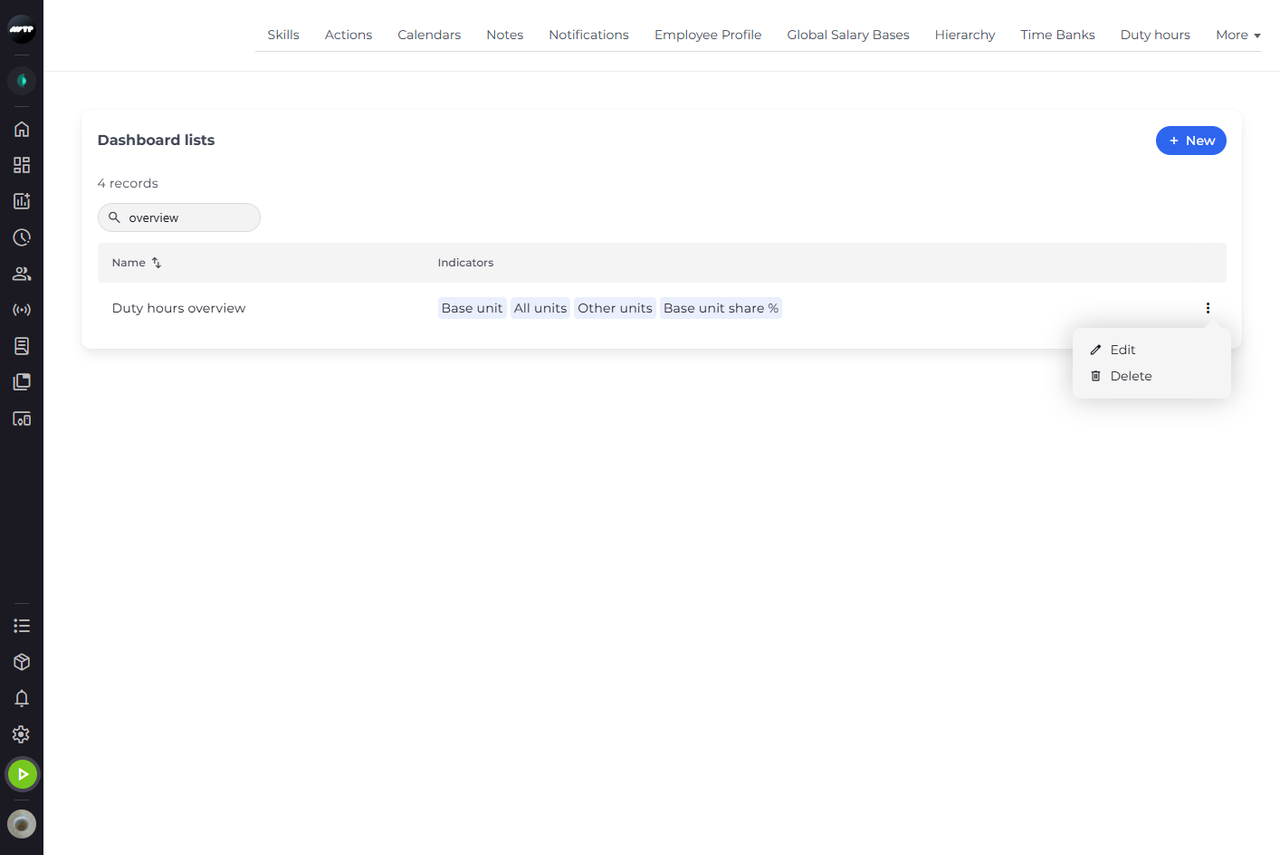
Step 1: Search for the list and click ⋮ at the end of its row
Open Settings > Dashboard lists (in the Settings tabs under More) and type the list's name in the search box. Click the ⋮ button at the end of its row. A small menu opens with Edit and Delete.
Tip: The search box finds a list by its name or by the name of one of its indicators.
-
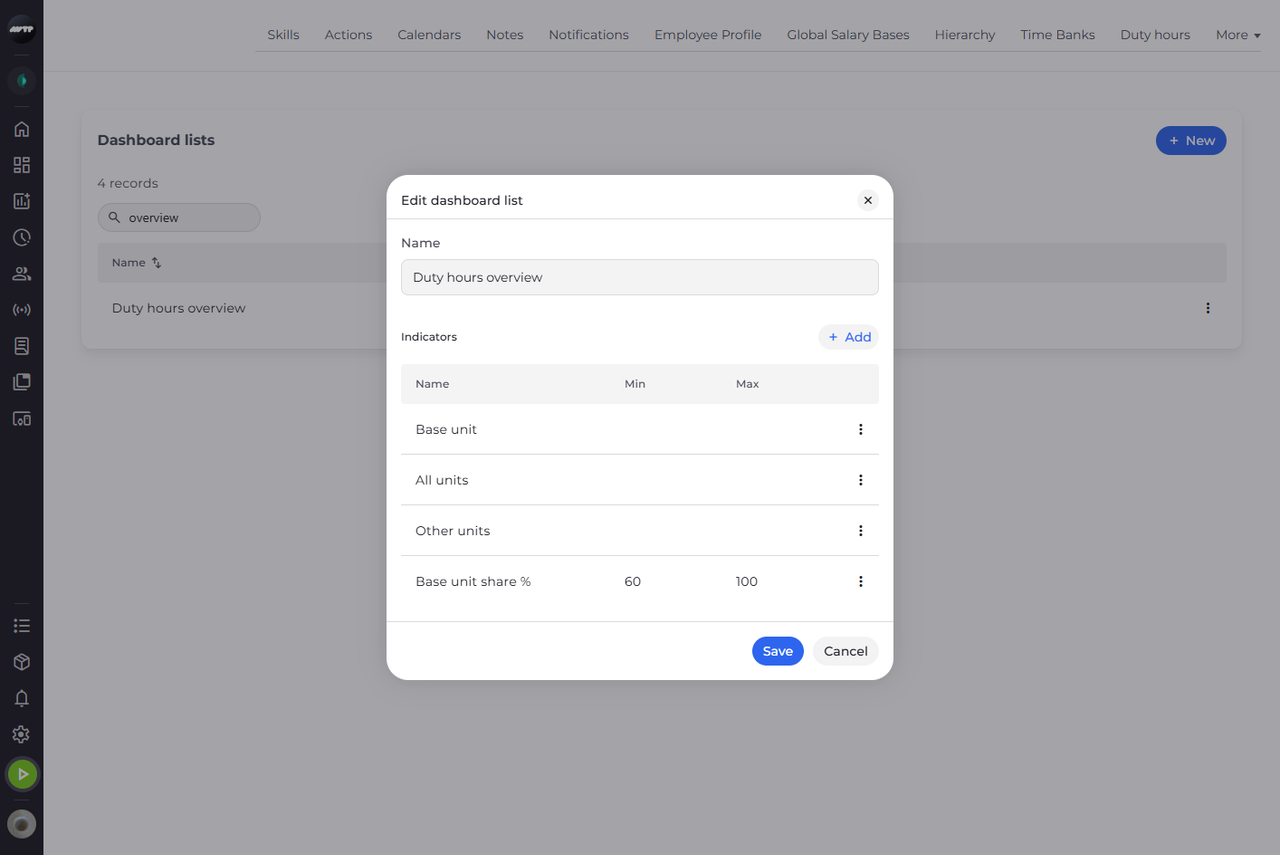
Step 2: The list opens with its name and indicators
Click Edit. Edit dashboard list opens with the list's Name and its Indicators, each with its Min and Max. Change the name here if you need to, or click Add to add another indicator.
Tip: An indicator's ⋮ → Delete takes it out of the list at once, without asking.
-
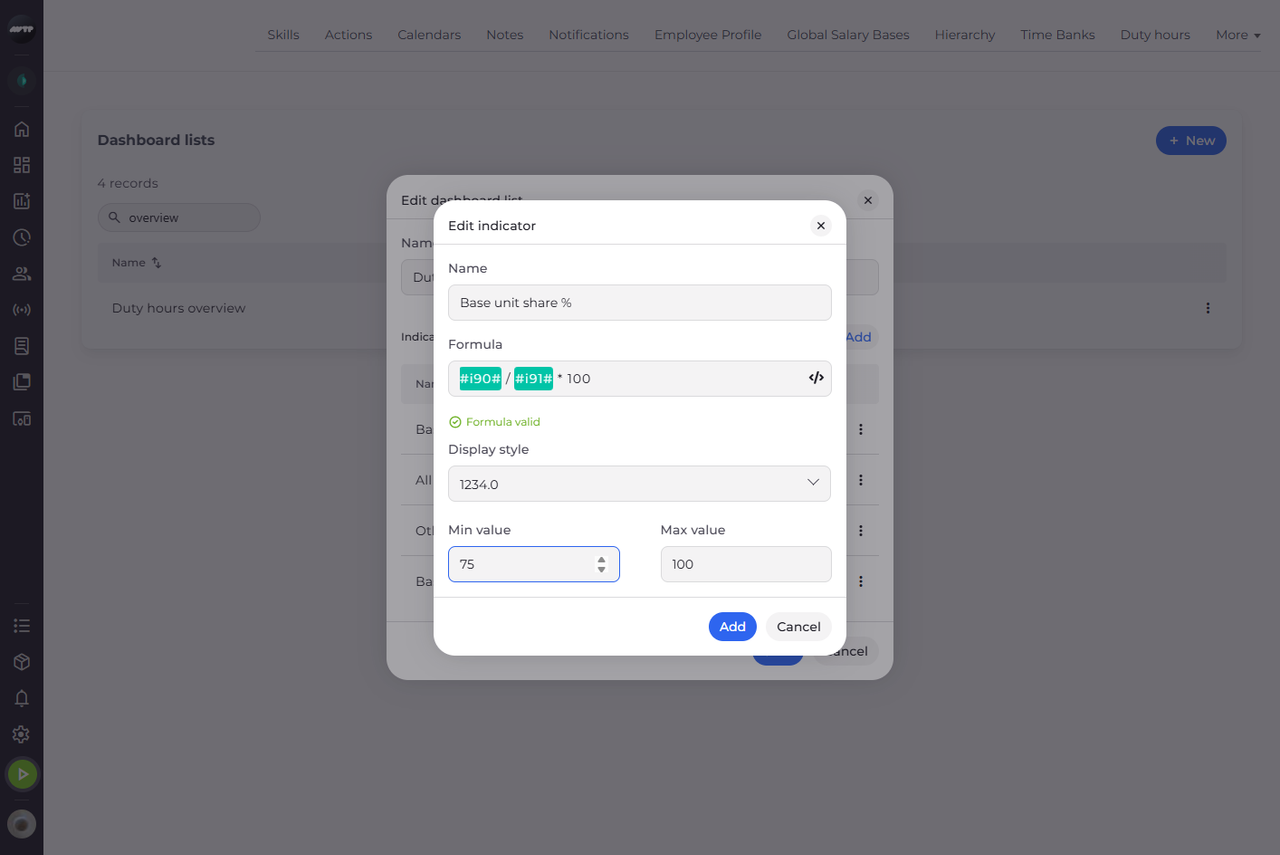
Step 3: Change what you need - here the Min value
Click the ⋮ button at the end of the indicator's row and choose Edit. Edit indicator opens with the indicator's Name, Formula, Display style, Min value and Max value; change what you need, for example the Min value. Click Add to keep the change, then click Save in Edit dashboard list.
Tip: Switching Display style between hours (1.50 (hours)), a duration (HH:mm or HH:mm:ss) and a plain number empties Min value and Max value - type them again in the new format.
What happens next
Edit dashboard list closes and the list is saved with your changes.
Good to know
- Nothing is stored until you click Save in Edit dashboard list. Cancel there drops every change since you opened the list, deleted indicators included; Cancel in Edit indicator drops only the changes to that indicator.
- New and the ⋮ at the end of each row appear only if you may change dashboard lists. Without that access you can only look at the lists - ask your administrator.
Questions
What does "A column points at an indicator that no longer exists." mean when I click Save?
A column of the list is built on an indicator that was deleted in Settings > Indicators. Open that column with ⋮ → Edit, replace the missing indicator in Formula, click Add and save the list again.