


Delete a dashboard list
Delete a dashboard list you no longer need from Settings > Dashboard lists. The app asks you to confirm first.
Before you start
You need:
- Access to Dashboard lists in Settings (under More)
- The right to change dashboard lists - without it the rows have no ⋮ menu
- A dashboard list you no longer need
New to the app? Start with Sign in to the web app.
When to use it
When nobody needs a list on their Dashboard any more.
Step by step
-
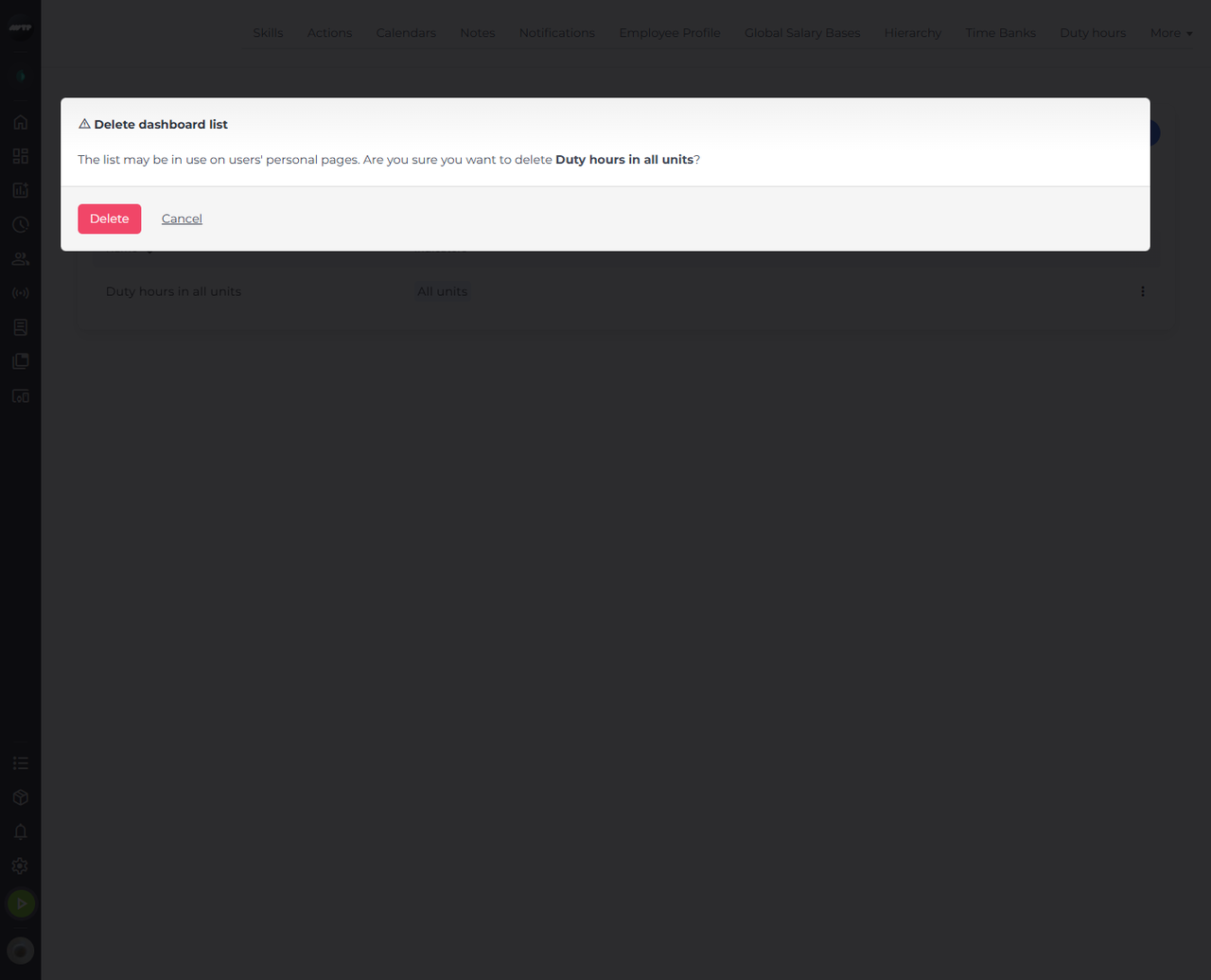
Step 1: Click ⋮ → Delete - the confirmation names the list
Open Settings > Dashboard lists (in the Settings tabs under More) and type the list's name in the search box. Click the ⋮ button at the end of its row and choose Delete. Delete dashboard list names the list and warns that it may be in use on users' personal pages.
Tip: Cancel closes the confirmation and keeps the list.
-
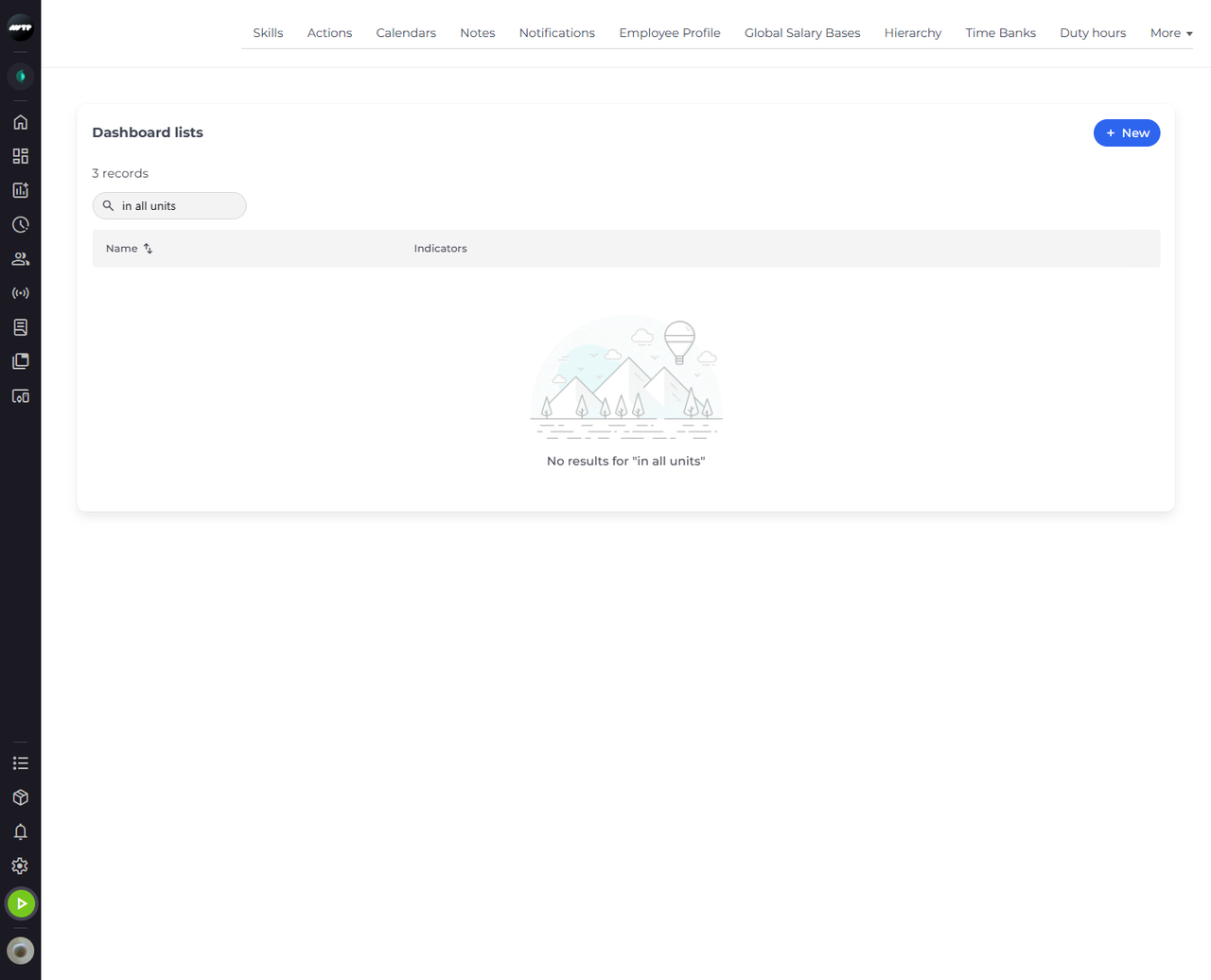
Step 2: The list is deleted, and so are its widgets on everyone's Dashboard
Click Delete in the confirmation. The list is no longer in the table; while your search is still in the box, the table says there are no results.
Tip: The number of records above the search box counts all lists, also the ones the search hides - it does not drop to zero when nothing matches.
What happens next
The list is deleted, and its widget is gone from every Dashboard that showed it.
Good to know
- If someone has their Dashboard open while the list is deleted, its widget goes away there the next time the widget loads its data.
Questions
Why is there no ⋮ at the end of the rows?
The ⋮ menu, like New, appears only if you may change dashboard lists. Ask your administrator for that access.